


Basic
A starting point for everyday ideas.
- Choose from the site’s model workflows
- Text and visual references by model
- Model-specific creative controls
- Save and revisit your work
- Organize references and favorites
Claim 50 free credits · Check in for up to 100 weekly

Describe the subject, setting and visual purpose of your image


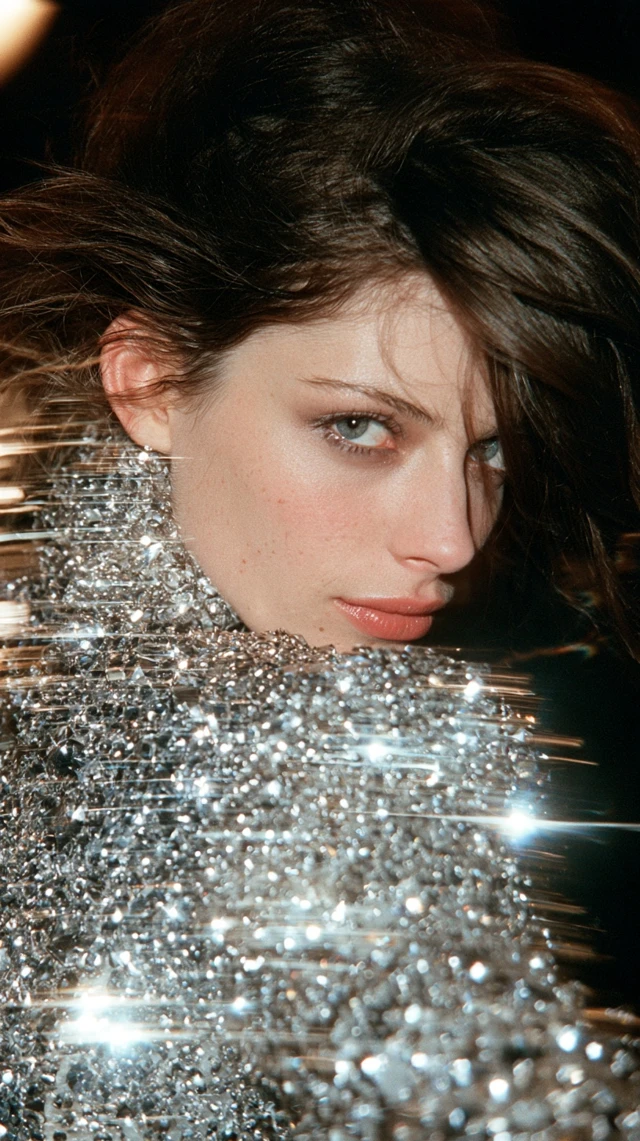
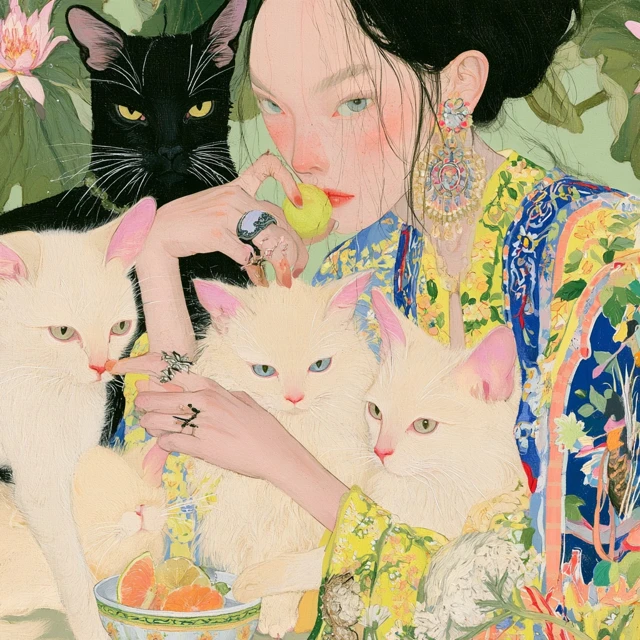
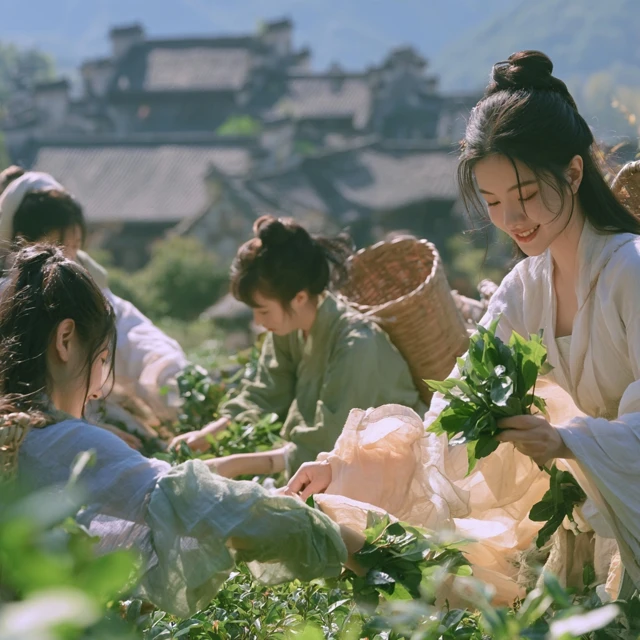
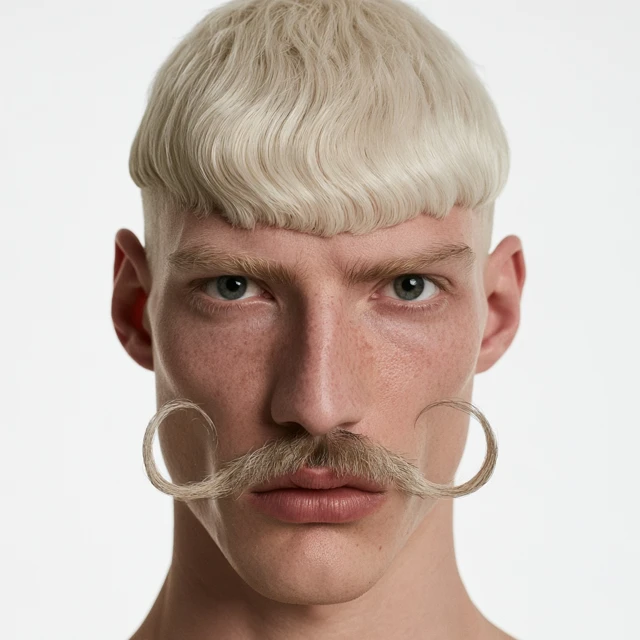
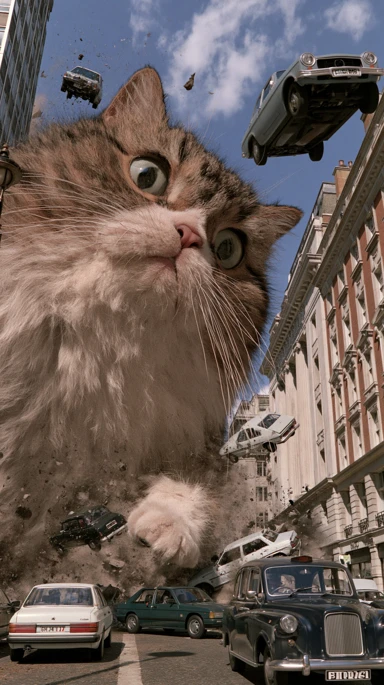
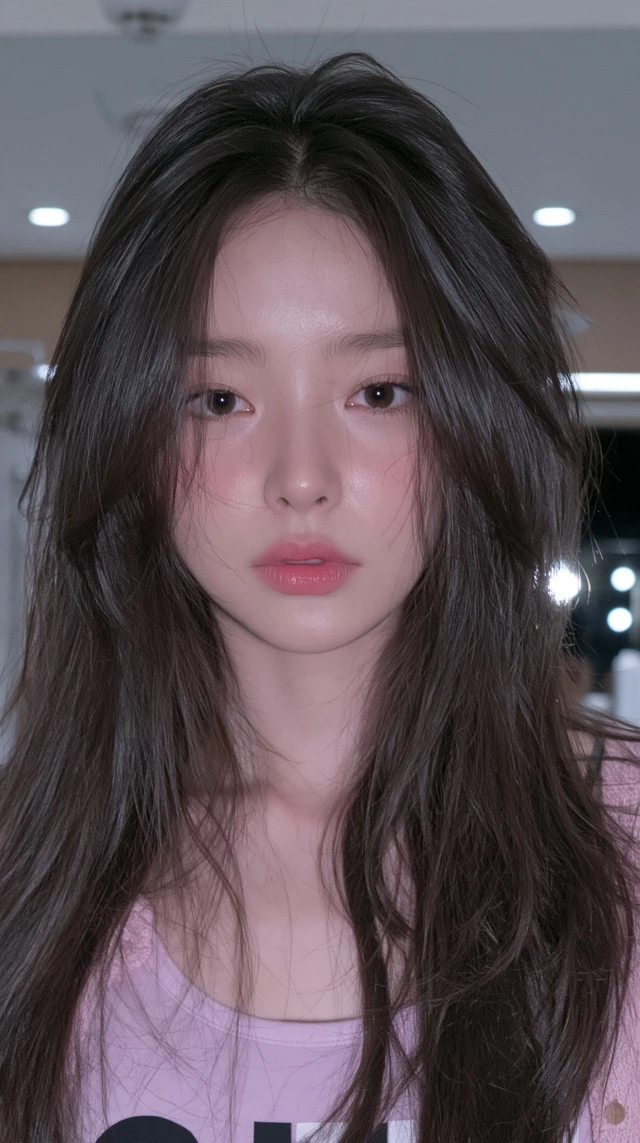
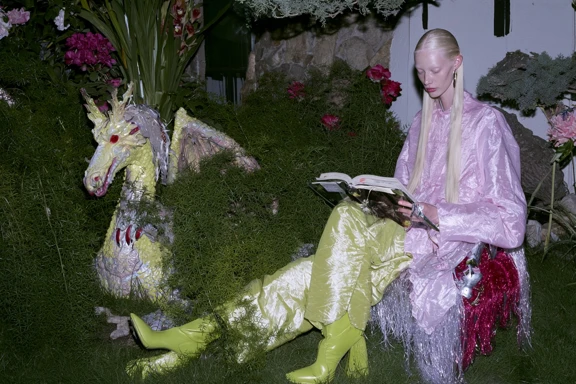
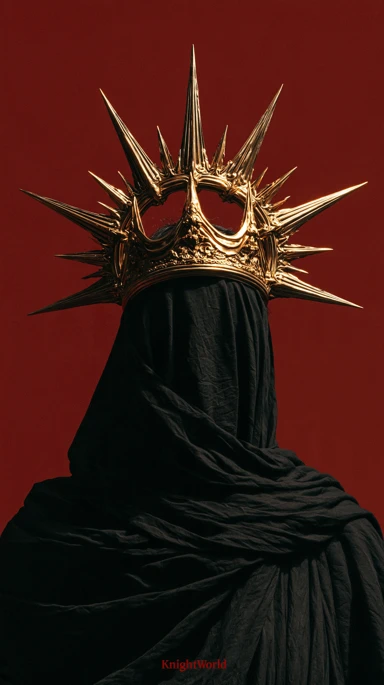
Explore composition, colour and atmosphere in this visual collection. Choose a direction to develop in the AI Image Generator; these images are inspiration for your brief, not a promise about its final result.

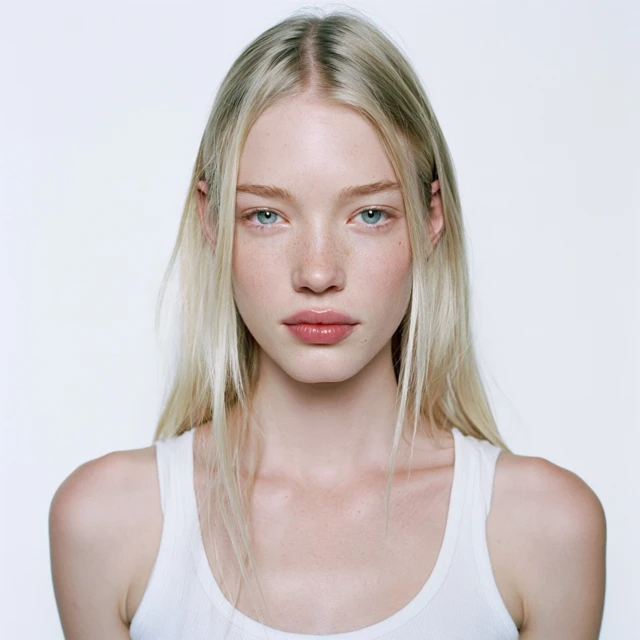
a studio portrait of a blonde woman in a white top

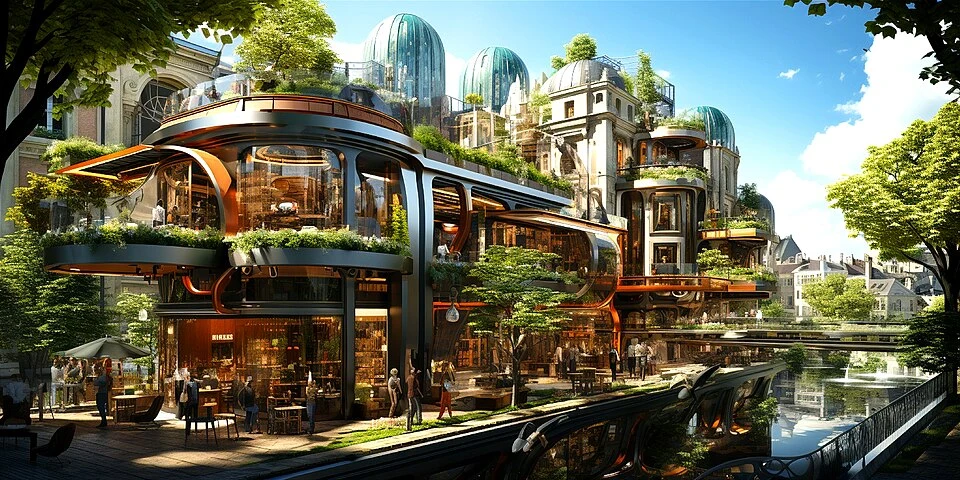
a lush science-fiction neighbourhood with layered terraces

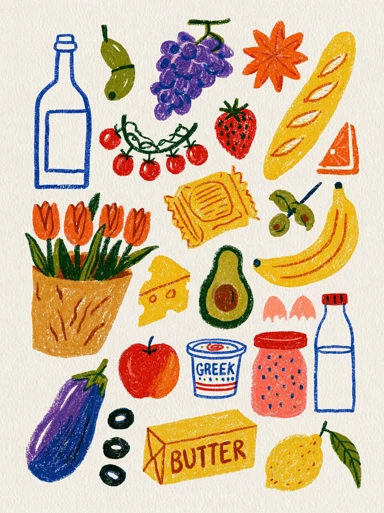
a colourful pantry illustration with bread, milk, fruit and vegetables

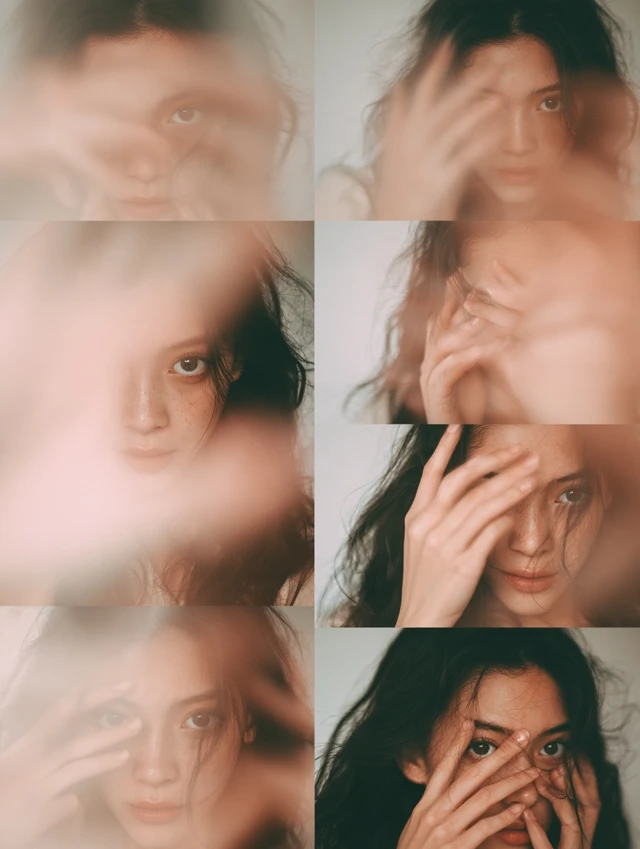
a collage of blurred portraits and expressive hand gestures

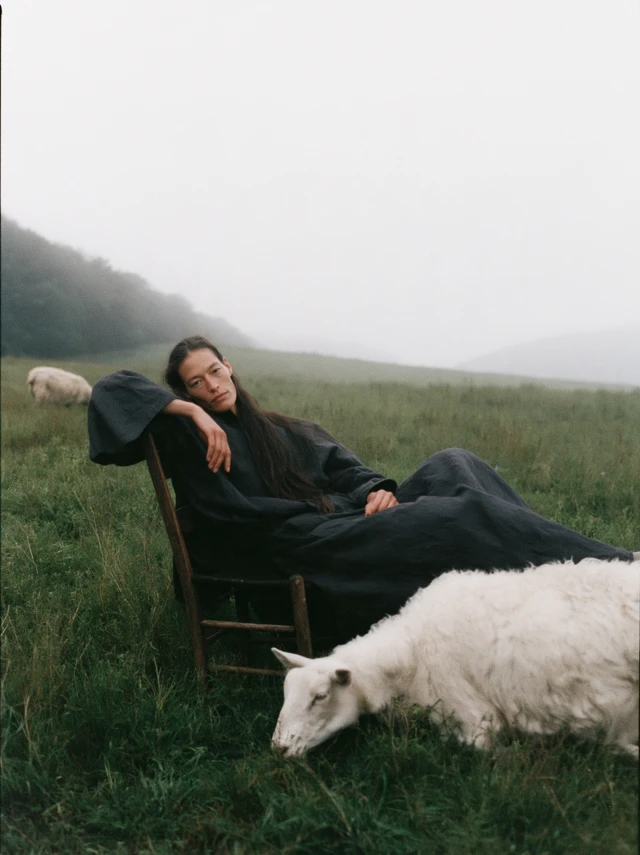
a reclining figure and a white sheep in a misty meadow

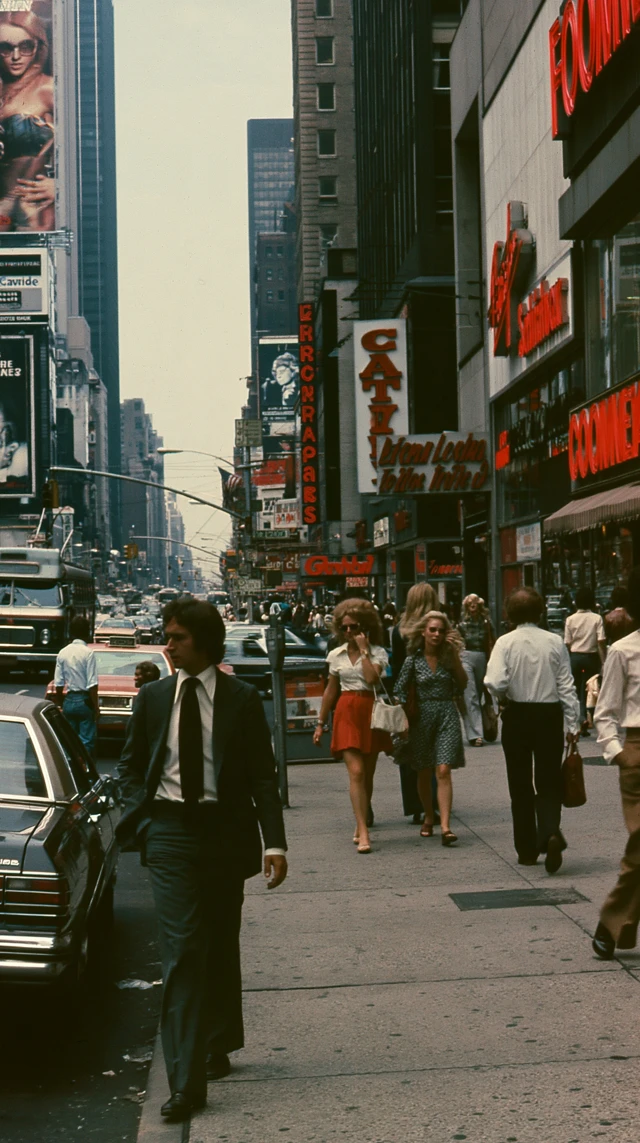
pedestrians crossing a busy city street

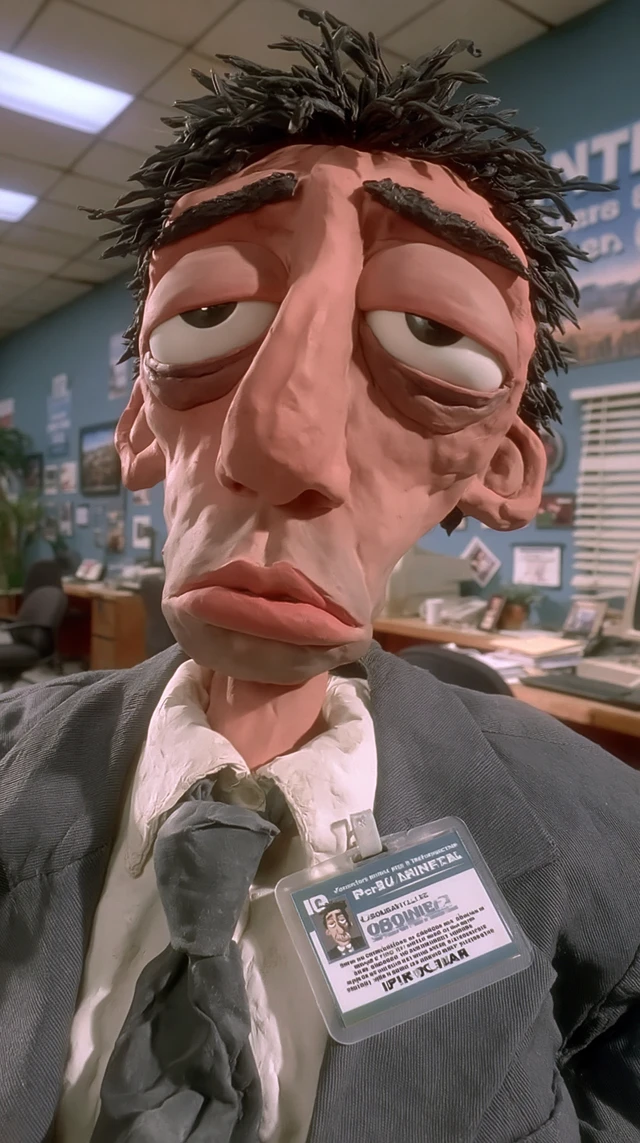
an expressive clay-style office worker in a grey suit

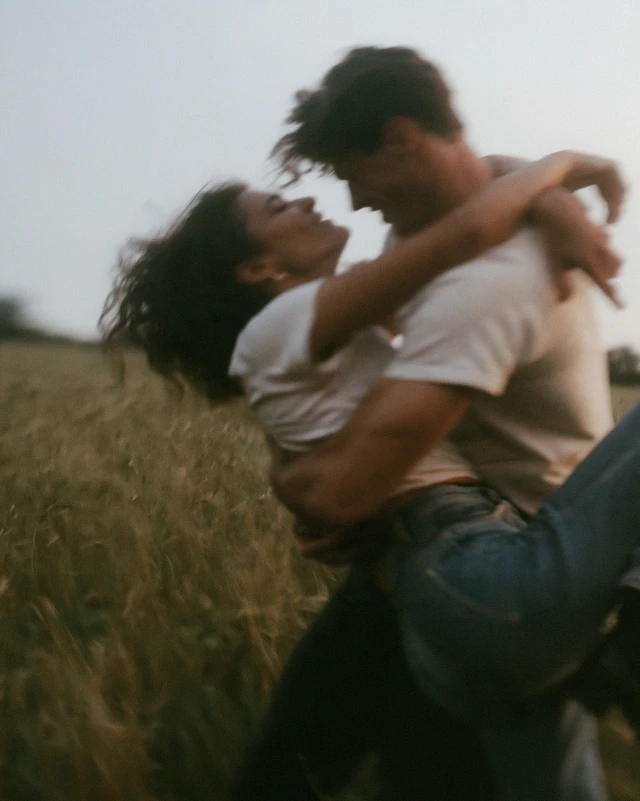
two people embracing in a sunlit meadow
A photograph can become the starting point for a product campaign, a social cover or a character story. Choose a model around your source material and the change you want, keeping the final use of the image in view.

Give one clear subject and one message room to stand out. Develop event posters, editorial covers and social cards with an AI image generator, carrying brand colour across a series while leaving space for the final headline.

Explore studio, home, outdoor and seasonal settings for a product. Compare surface materials and display moods; when you have a reference photograph, keep packaging, label position and proportions central to the next creative direction.

A portrait can lead to different clothing, light and surroundings, or become the basis of an illustrated character. Choose a reference workflow when identity matters, and compare remix directions when the whole image needs a different artistic mood.

Give an abstract topic a visual setting for course covers, presentations and story illustrations. Composition, colour and subject relationships can clarify the idea; check factual details and final labels separately before publishing.
Explore posters, portraits, product settings and illustration from text or a reference photograph. Photo transformation can focus on style, light, surroundings or colour; text-to-image is useful when you need a new scene and do not yet have a source picture.
Describe the subject, setting and purpose in the input area, then choose a suitable model. A clear scene, one main style and a visual focus are easier to develop than a crowded parameter list. Review the settings and credit quote before submitting the task.
Photo transformation starts with an existing picture and is useful for exploring a new expression while retaining selected relationships. Text-to-image builds a scene from words. If the source matters, explain what should remain rather than combining several unrelated changes in one instruction.
Ideogram 5.0 · Ideogram V3 · Ideogram Character · Ideogram V3 Remix
A background change can be an editing or remix goal, such as a cleaner product display or a new setting around a person. Provide the references and instructions supported by the selected model, then review subject edges, proportions and important details in the result.
Start with text when you only have a character idea. Explore Character when you have a clear portrait reference and want to extend the person into a new setting. A visible face and distinctive hair help define the target, while clothing, pose and surroundings develop the story.
Compare Remix when you like the subject or framing of a picture but want another style, light or mood. It is useful for developing alternative versions of an existing direction. For a small local change, compare editing workflows that support the input you need.
Size, aspect ratio and image-count options depend on the selected model and are displayed in the workspace. Choose framing around the actual placement, whether a social cover, portrait poster or product image, then check the downloaded file dimensions and appearance.
Yes. Specify a short headline separately, along with its position and lettering direction. Compare product form, labels and proportions with the actual reference. Review any image before publishing, and complete long text, exact information and final typesetting separately when necessary.
Sign in to see current activities and your credit balance. Before submission, the AI image generator shows the quote for the selected model and settings. Browsing examples or copying text does not submit an image-generation task.
The model directory helps compare text-to-image, character references and remixing. Ideogram 5.0 Prompts provides style and subject inspiration. Decide how the image will be used, then bring your own words or photograph into the appropriate workspace.
Bring your own subject to the AI Image Generator. Choose a workflow, describe the visual direction and develop the image that fits your project.
