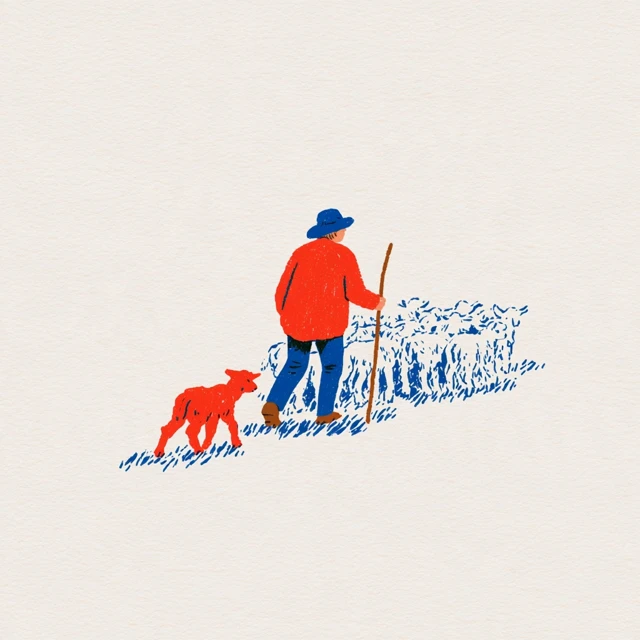
Ideogram 5.0 Prompts: Inspiration for Your Next Image
Explore Ideogram 5.0 prompts for expressive lettering, character stories and imaginative worlds. Discover a visual direction you love and develop it into something that belongs to your project.
Describe your idea and develop it into a fuller image prompt.
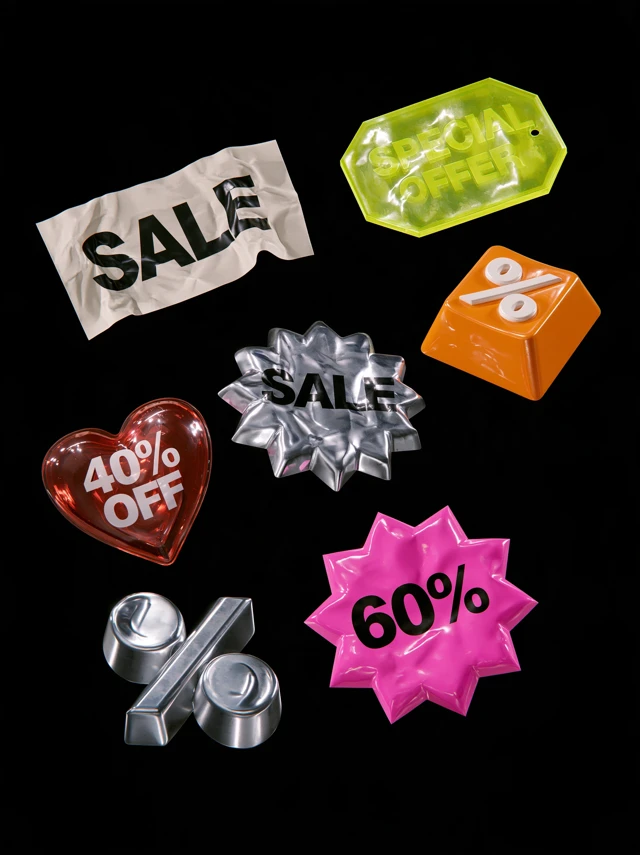
SALE stickers in paper, chrome and bright translucent materials
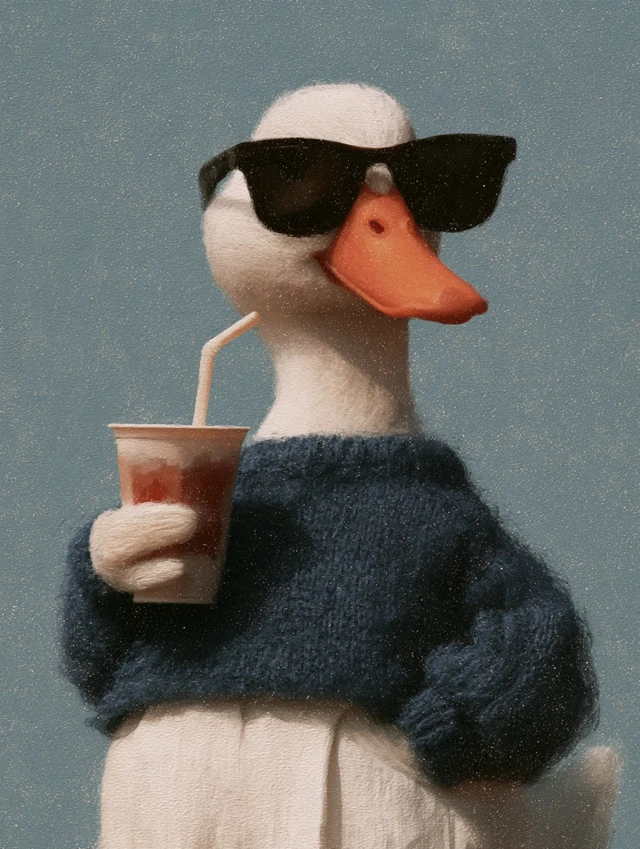
a duck in a blue sweater sipping a drink through a straw
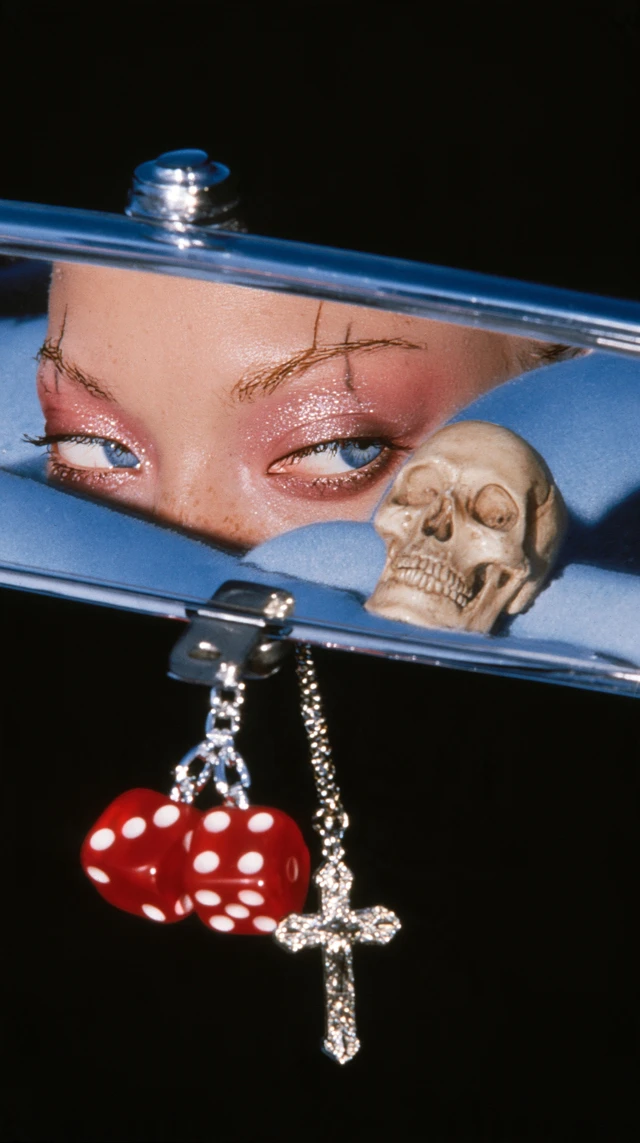
eyes reflected in a car mirror with hanging dice and a skull
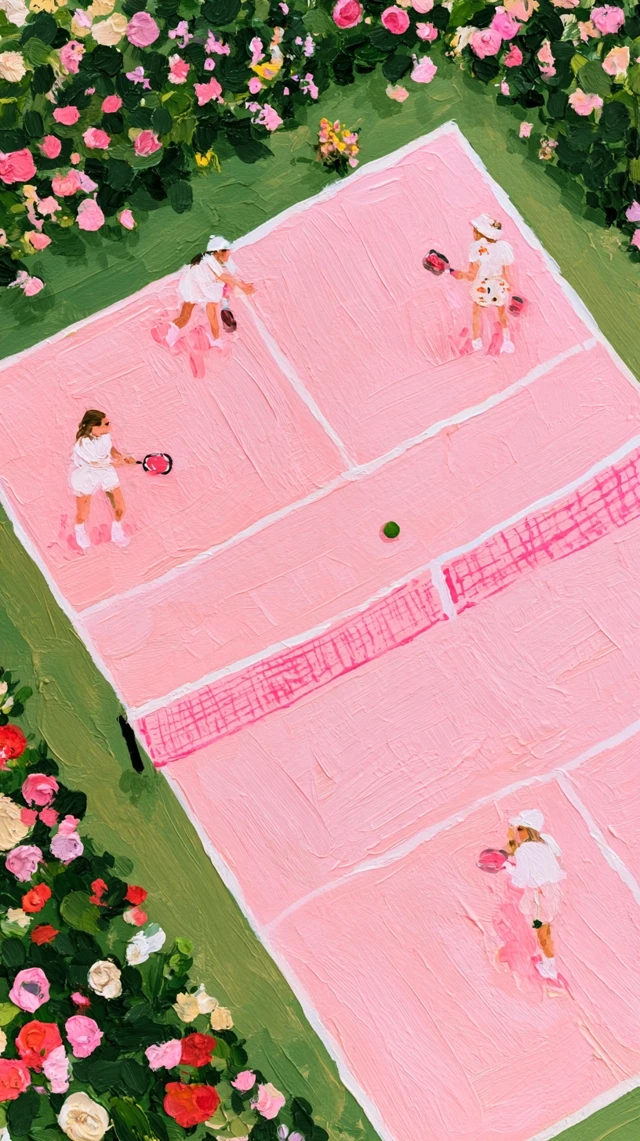
a pink pickleball court among garden flowers
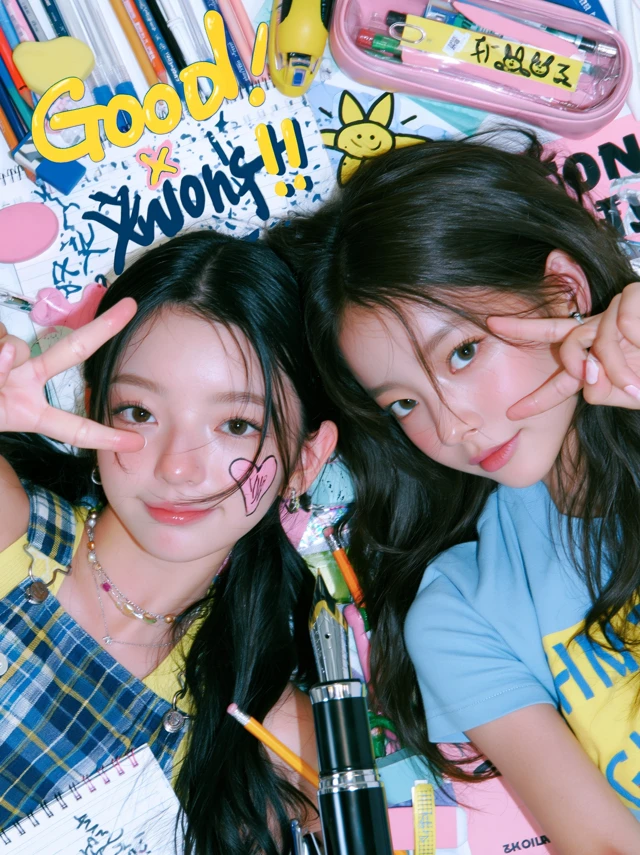
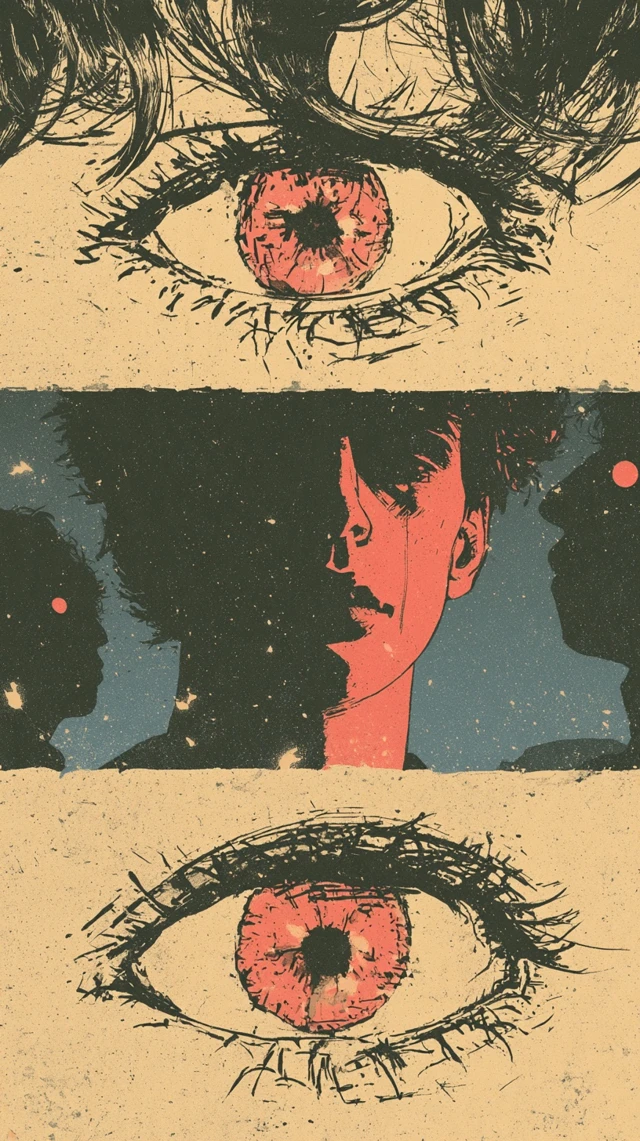
a retro pop collage of two performers and stationery
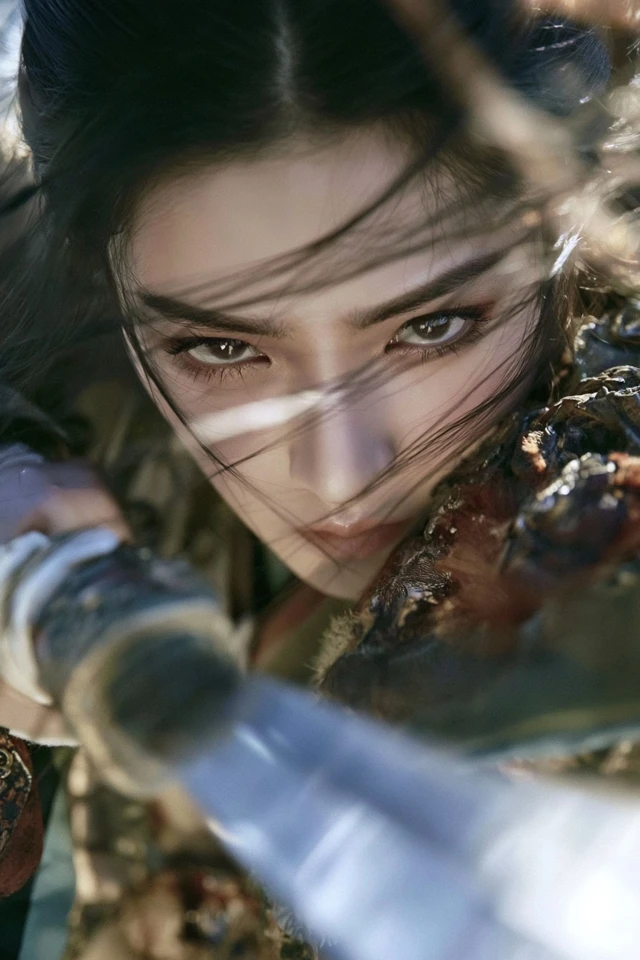
an armoured woman holding a straight sword
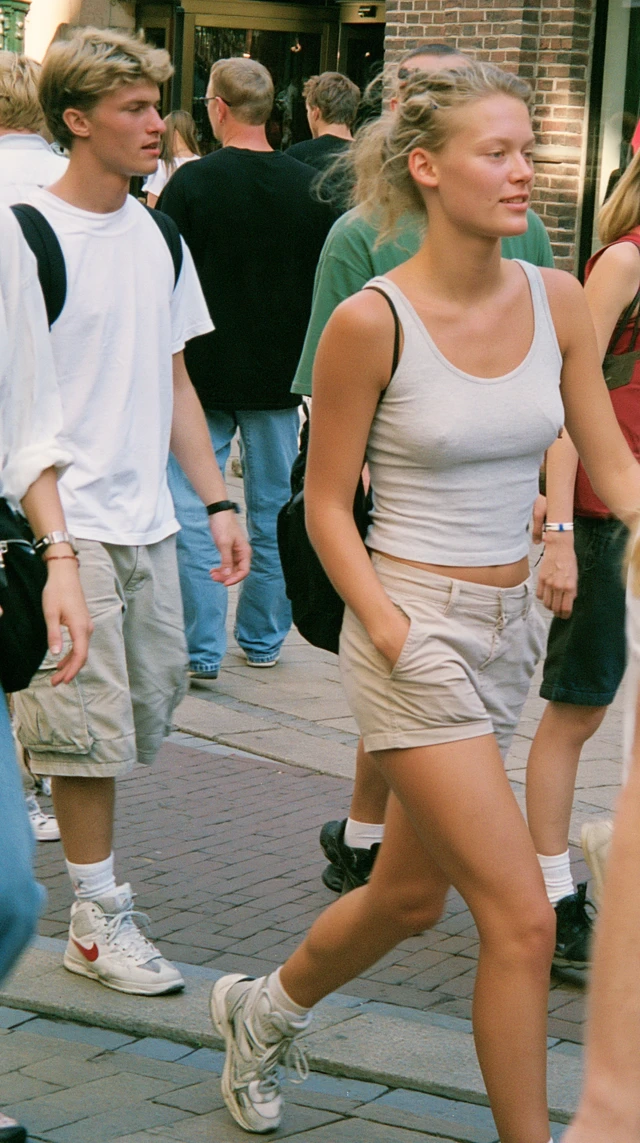
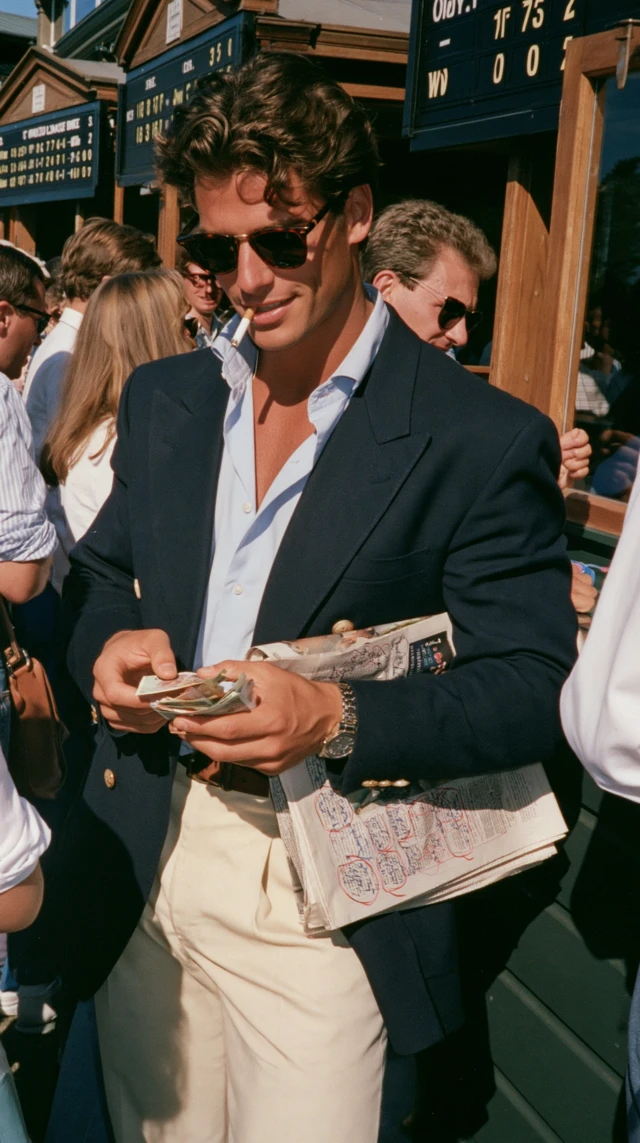
a sunlit candid street scene with casually dressed people
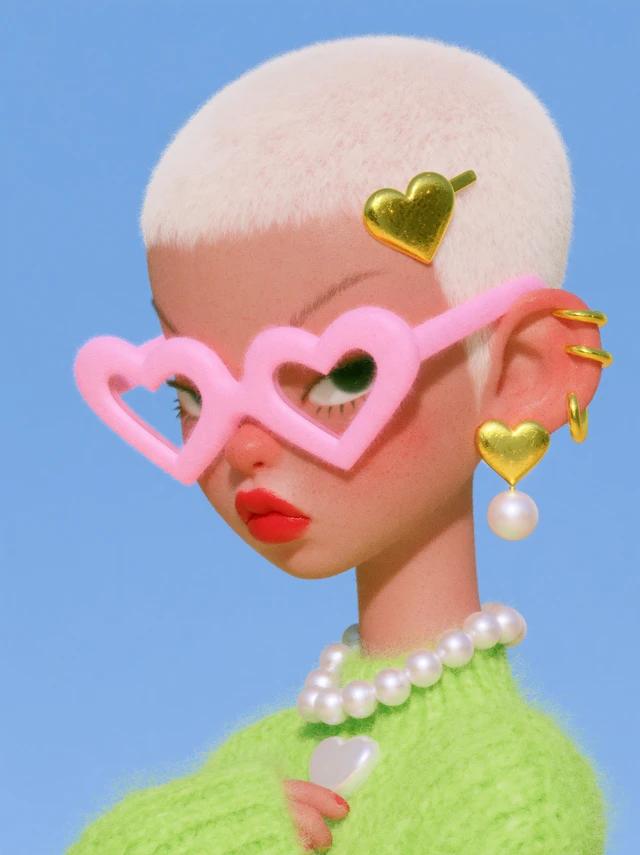
a pink-haired doll with heart-shaped sunglasses
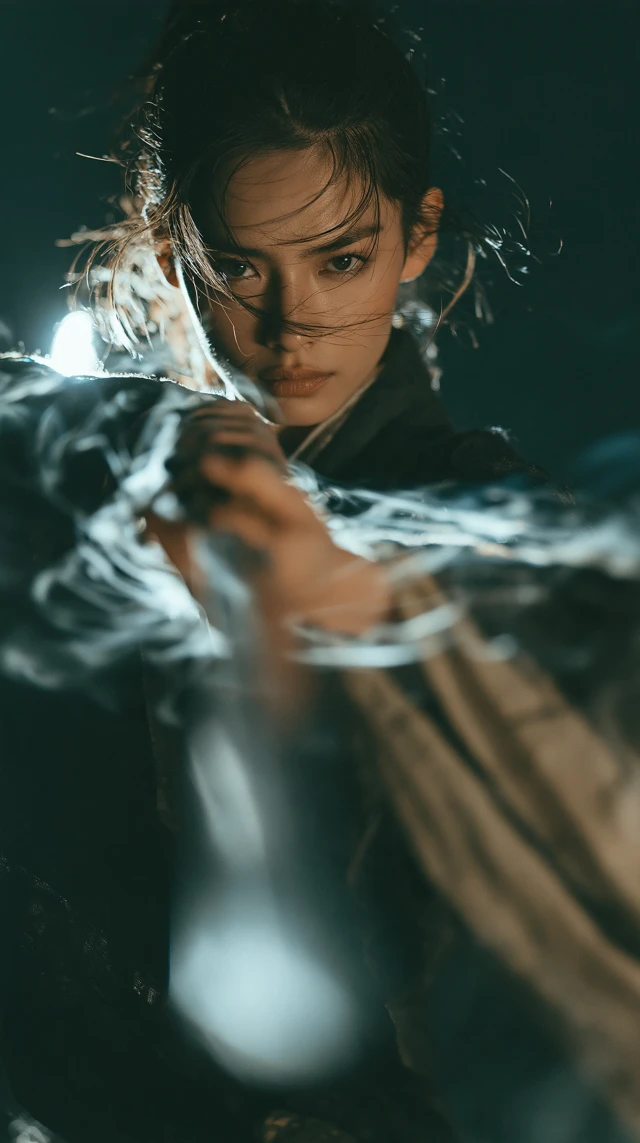
a swordswoman and glowing sword trails against darkness
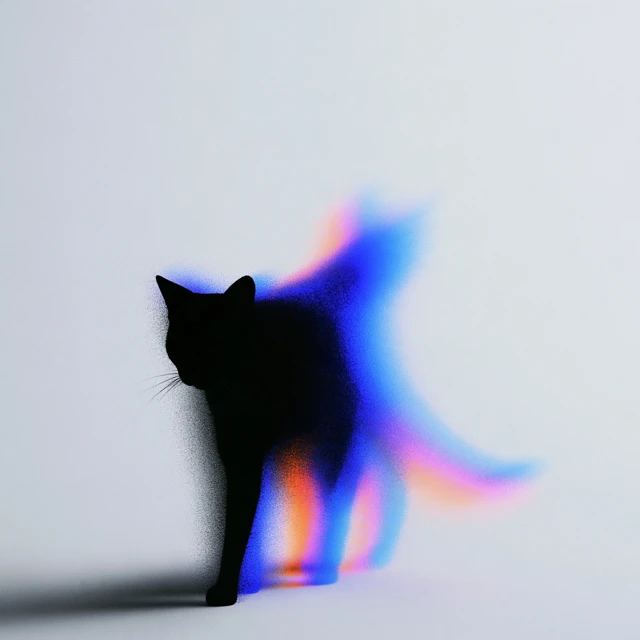
a black cat silhouette with rainbow-coloured ghosting
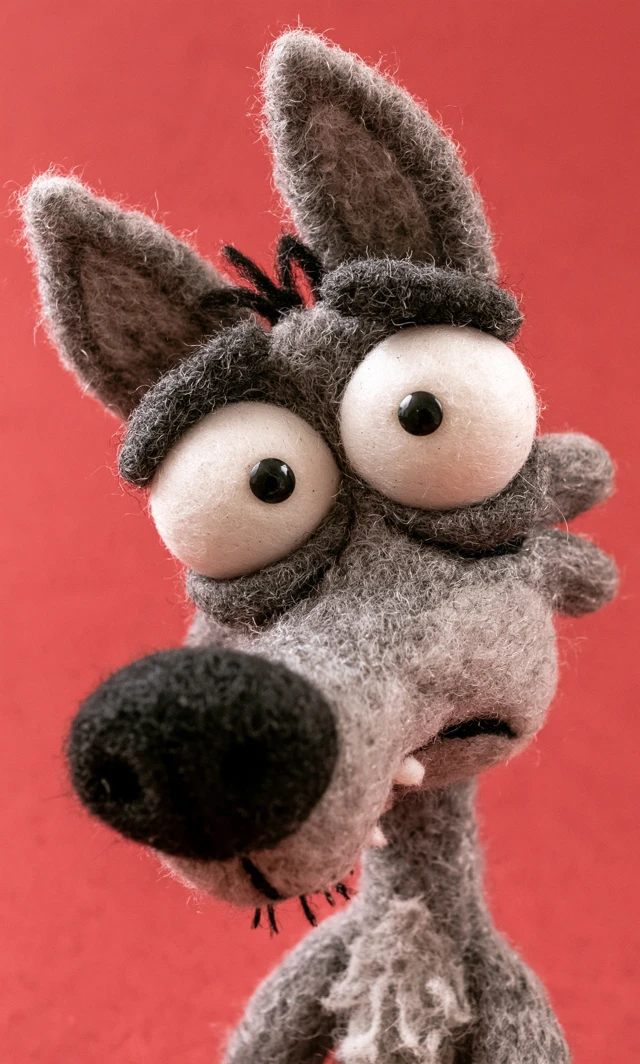
a wide-eyed felt wolf on a red background

two women resting on sunlit green grass
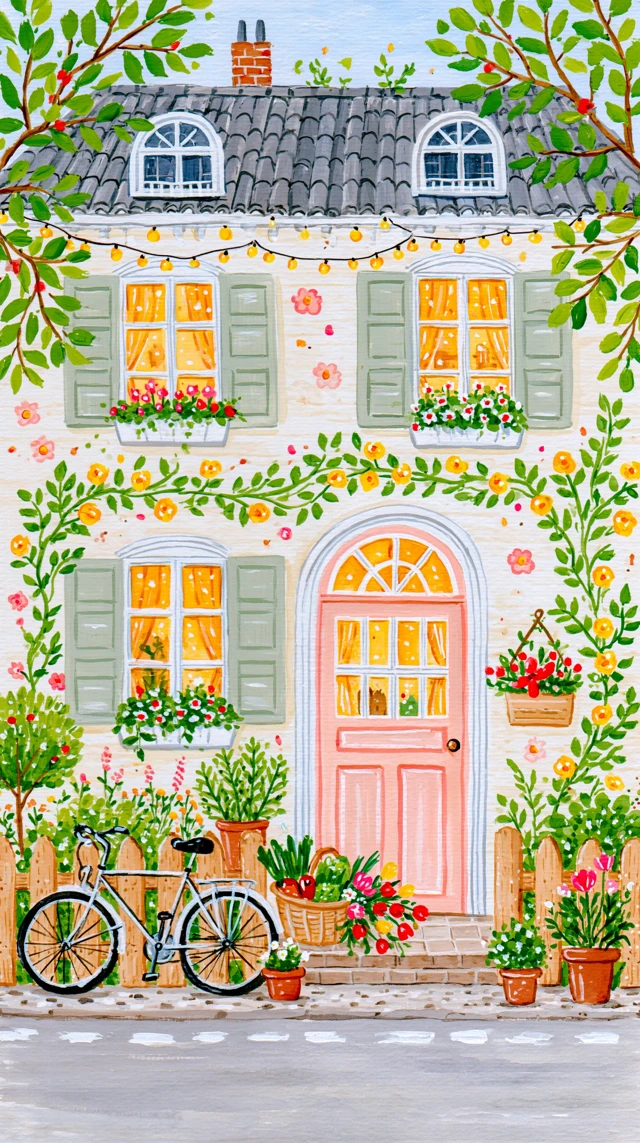
a flower-covered house with a bicycle and glowing windows
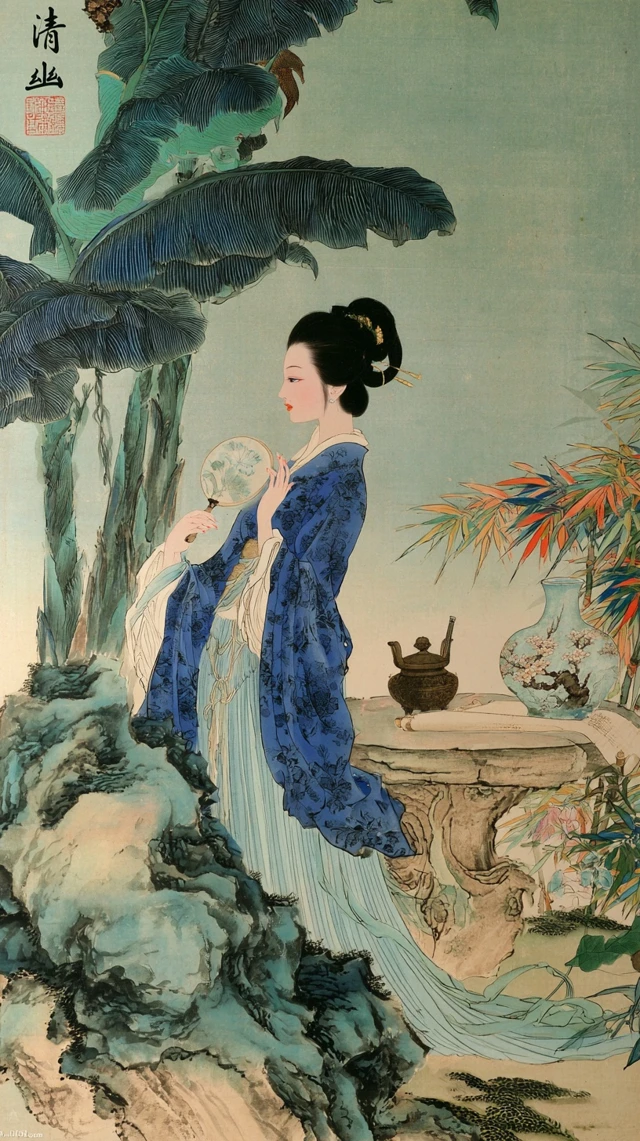
a blue-robed figure beside rocks and broad leaves
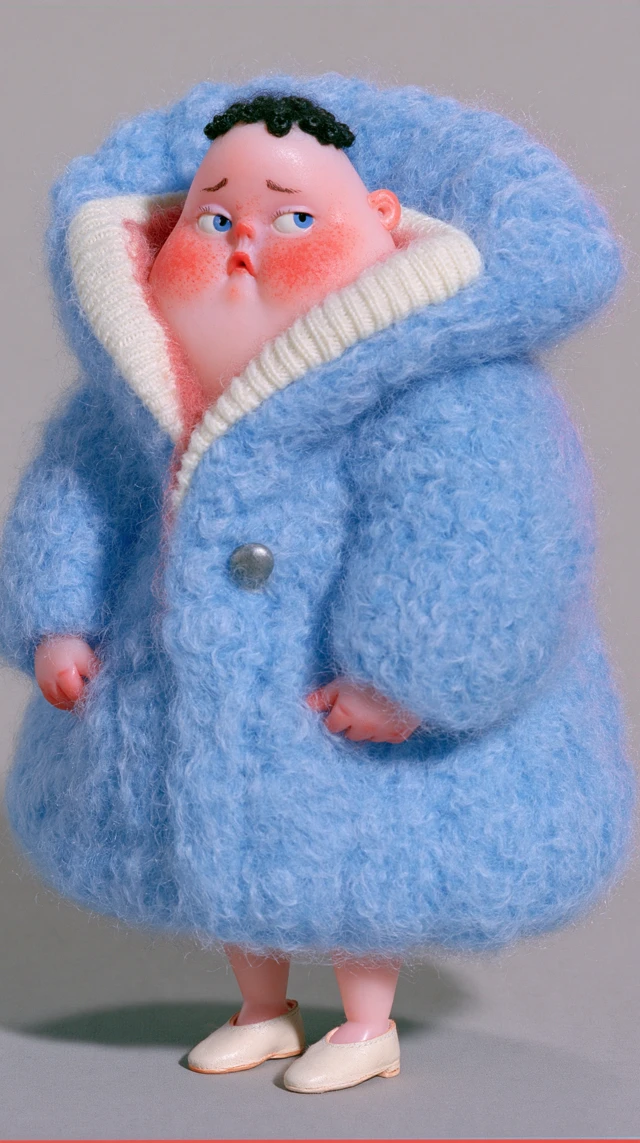
a small art doll wrapped in a fluffy blue coat
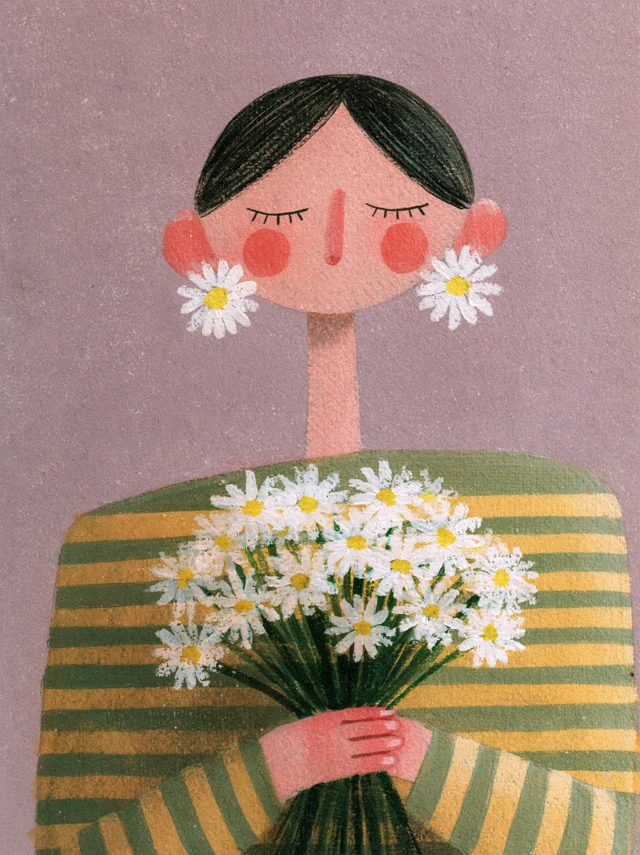
a painted figure holding daisies against a striped sweater
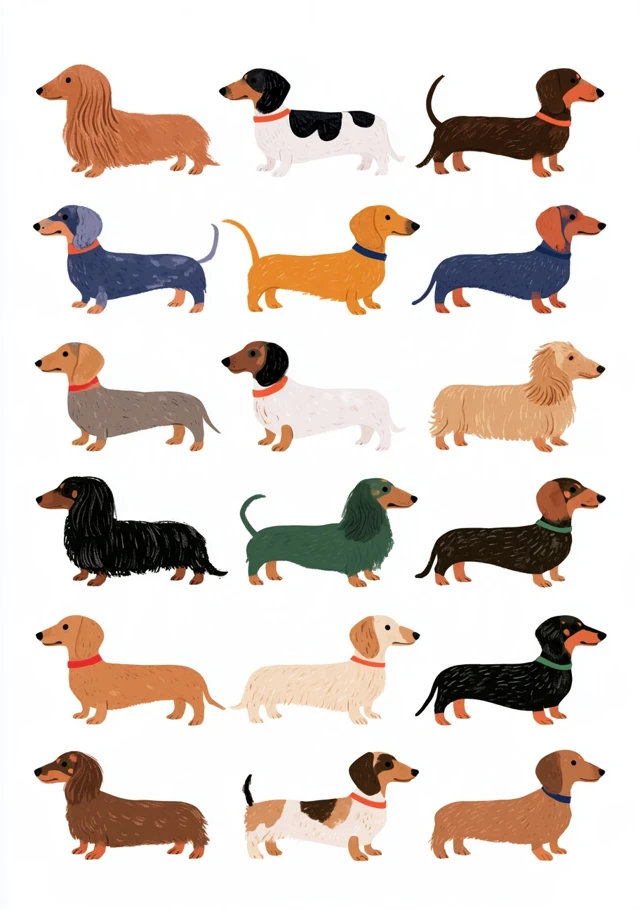
a grid of dachshunds with varied coat colours
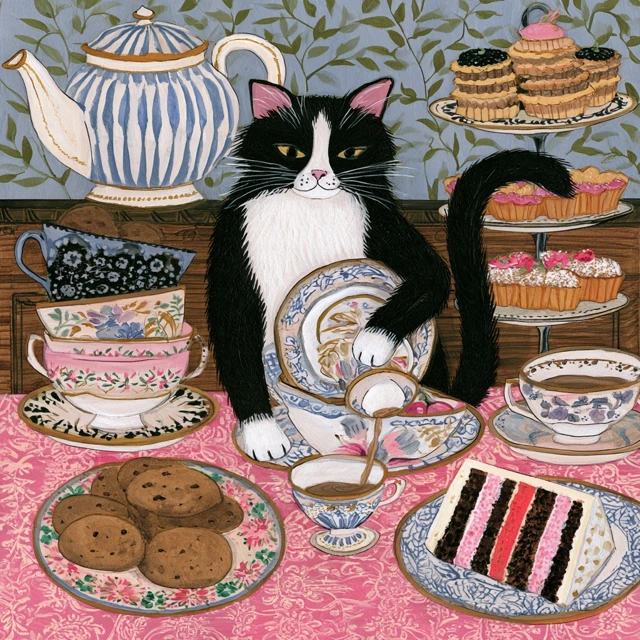
a black-and-white cat at a table of tea and cakes
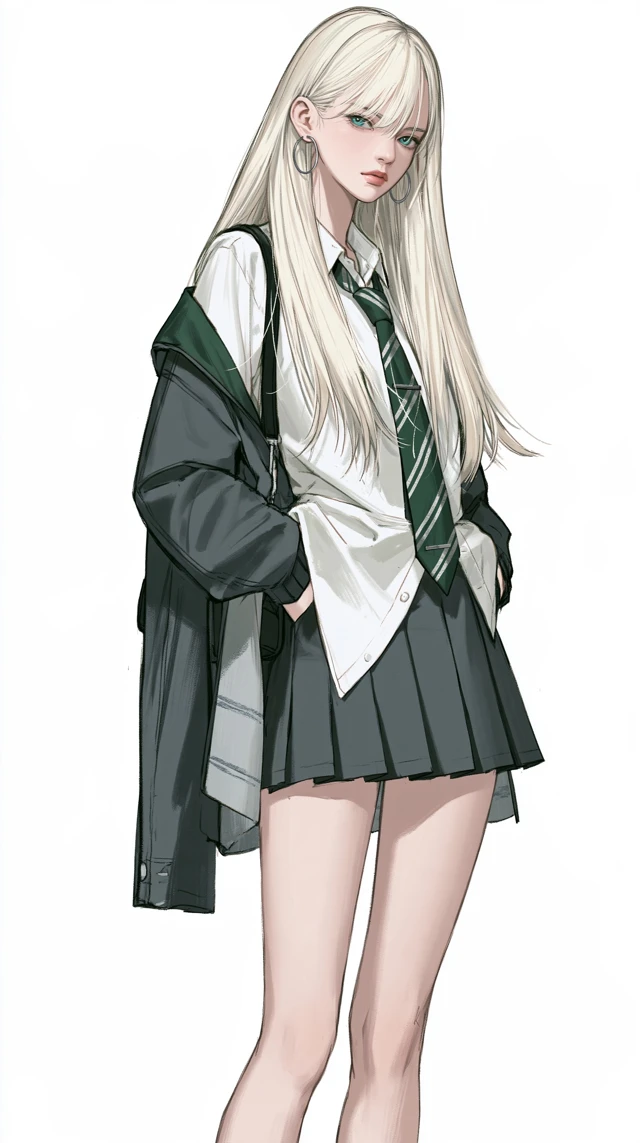
a long-haired illustrated character in a dark jacket
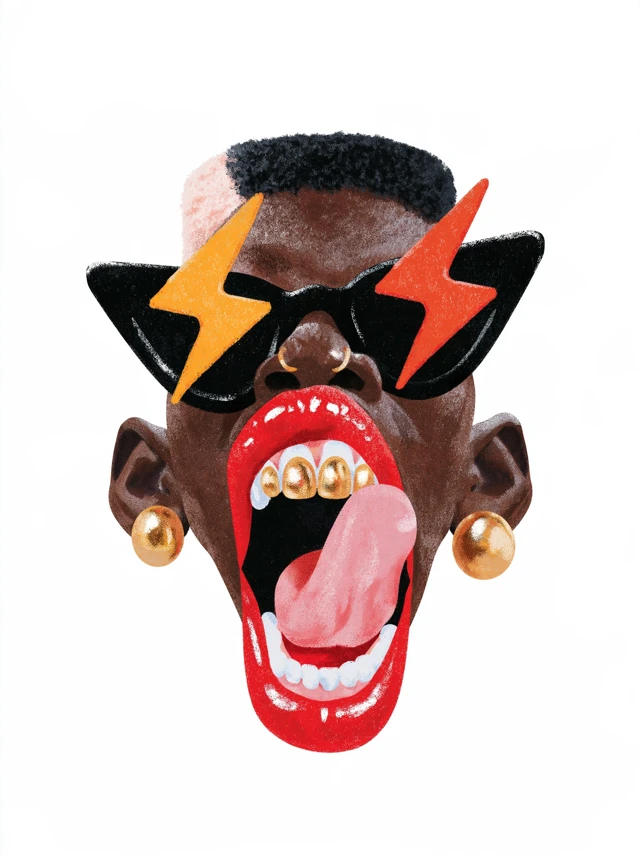
a colourful face collage with lightning-shaped glasses
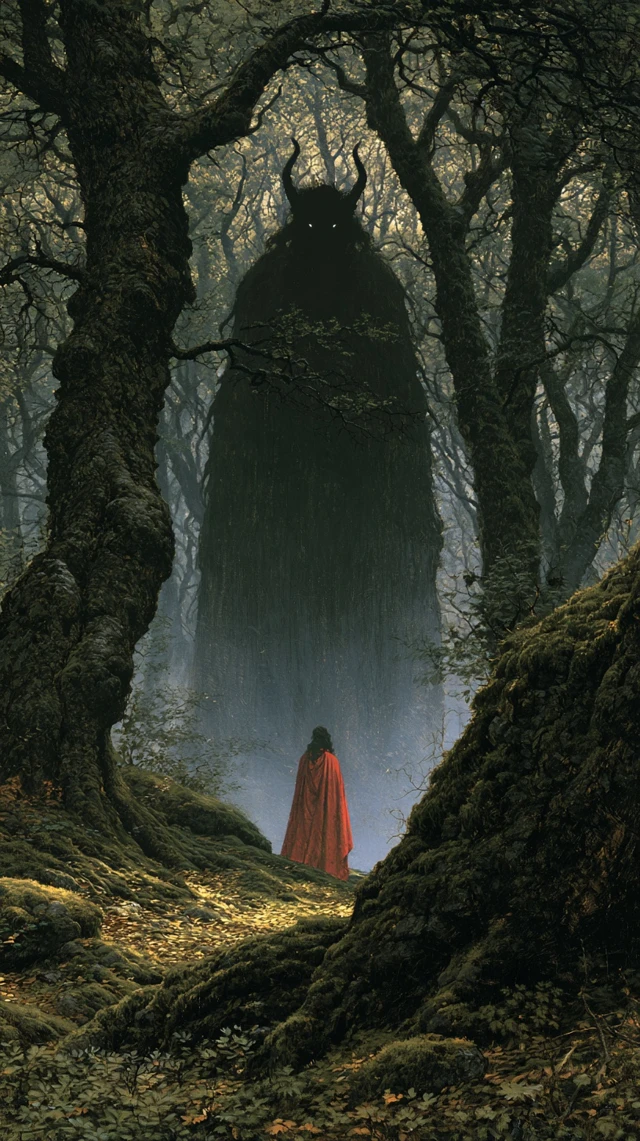
a cloaked figure in a dark, moss-covered forest
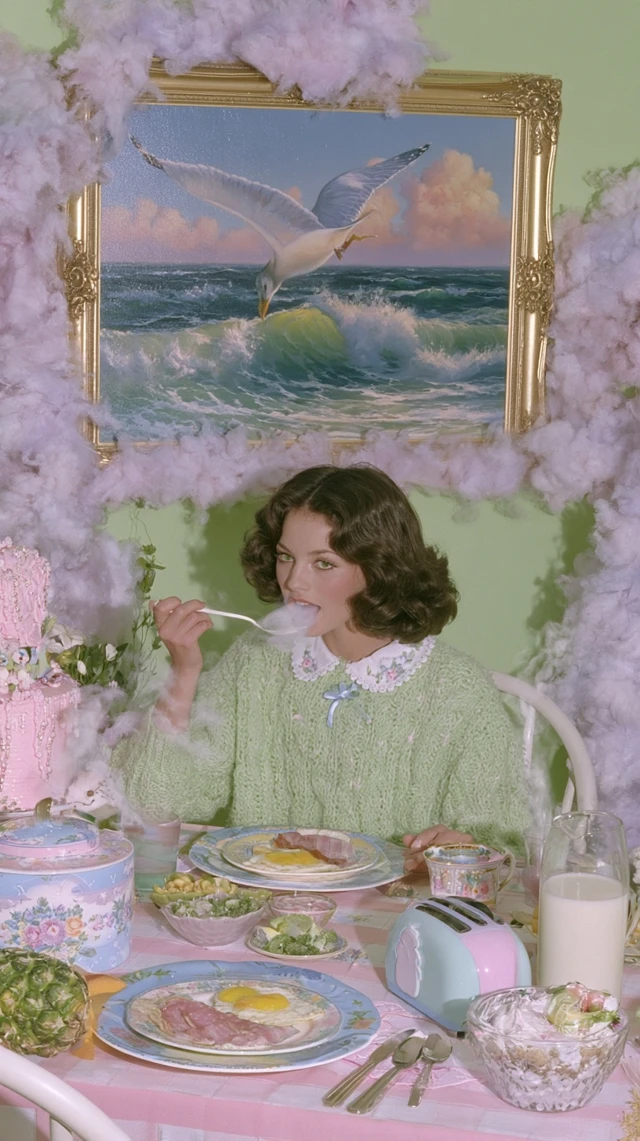
a pastel breakfast table beneath a framed seascape
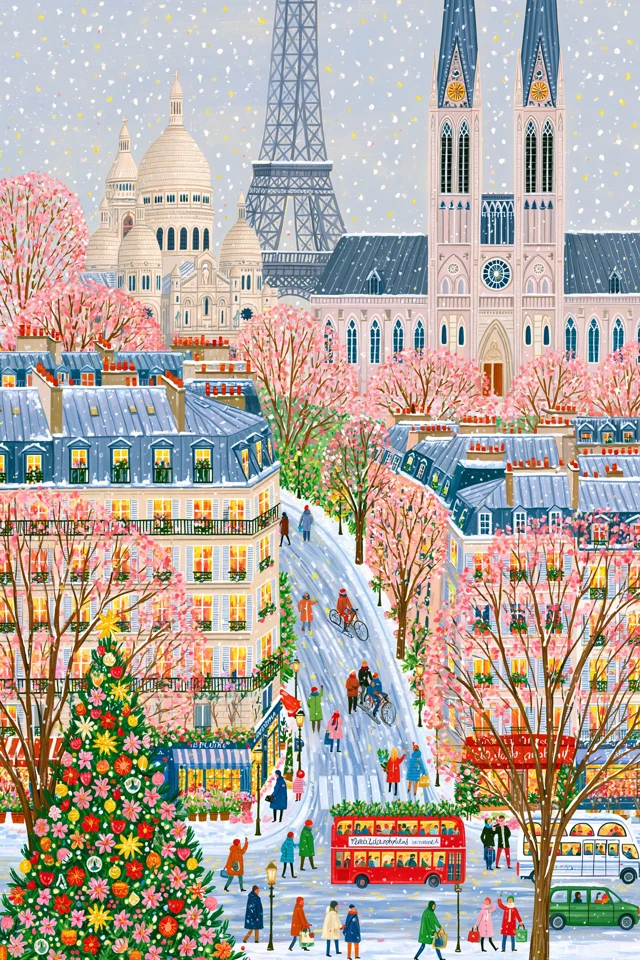
a colourful illustrated Paris street in winter
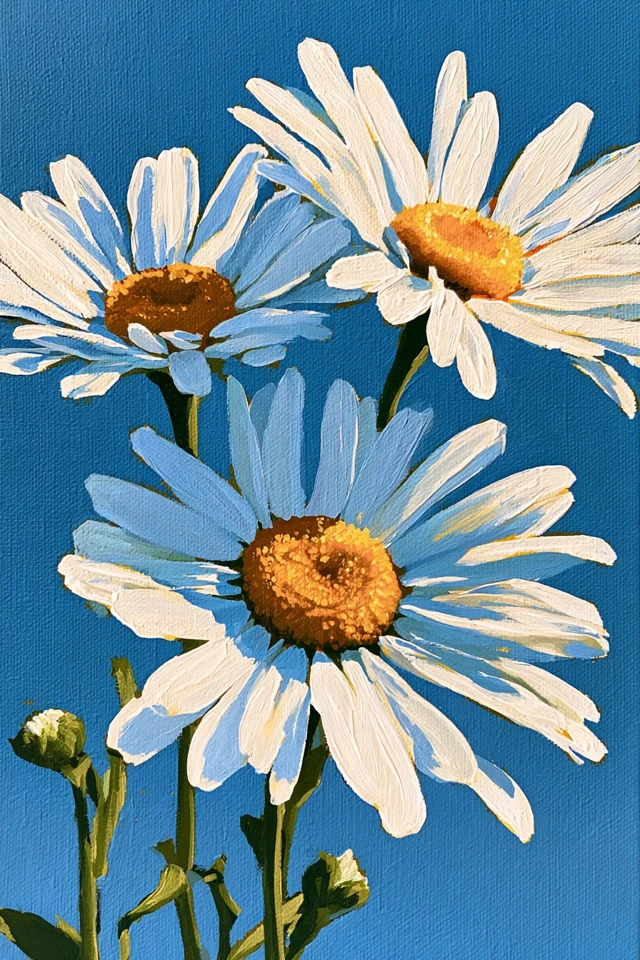
white daisies painted against a blue background
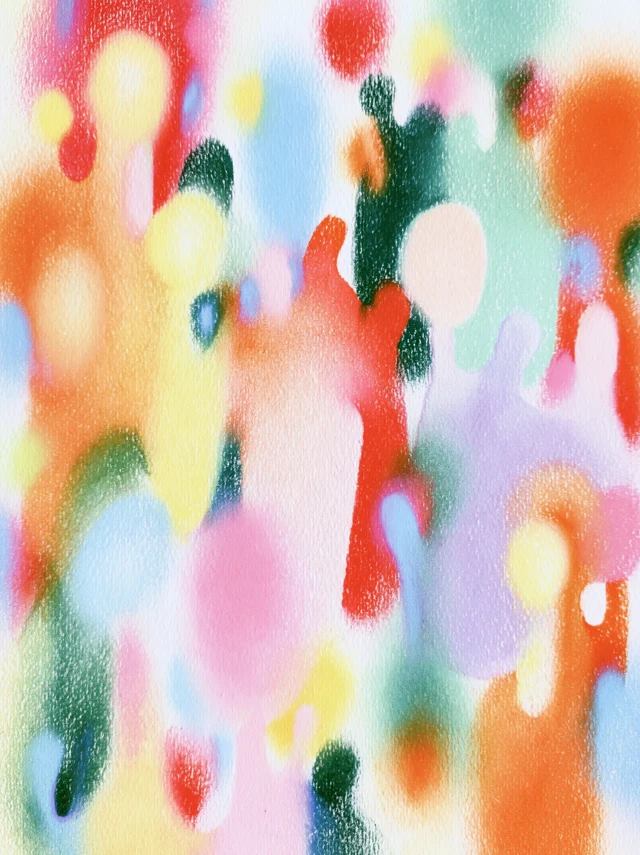
soft pastel patches of bright colour on textured paper
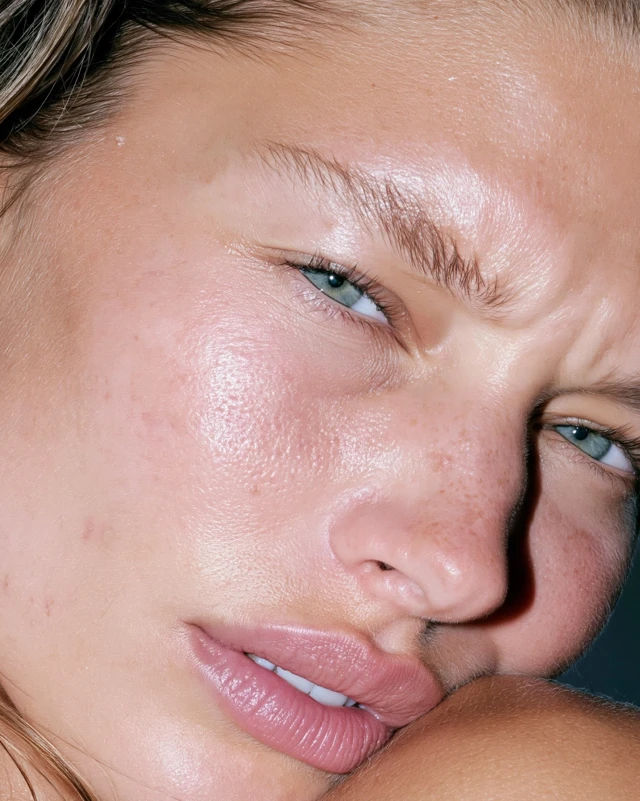
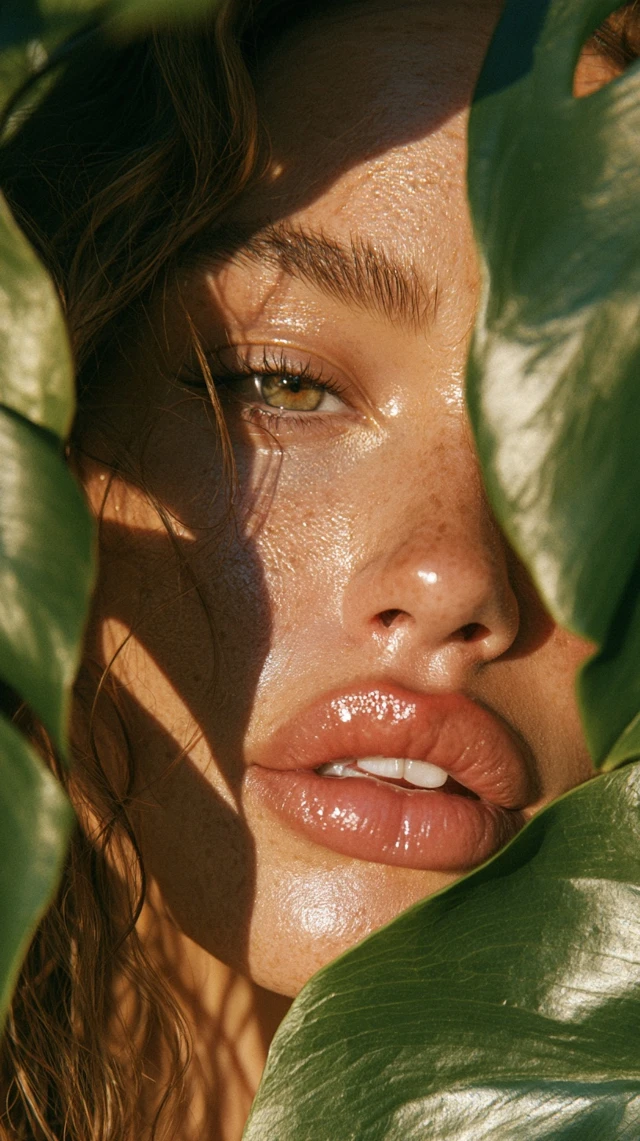
a close-up portrait with natural skin texture
Ideogram 5.0 Prompts: Inspiration for Your Next Image
A colour, a texture or a character can open a new direction.
Bold colour, distinctive shapes and the right detail make a visual idea memorable. Explore different creative directions in Ideogram 5.0 Prompts, save a starting point you like and develop it around your own story.
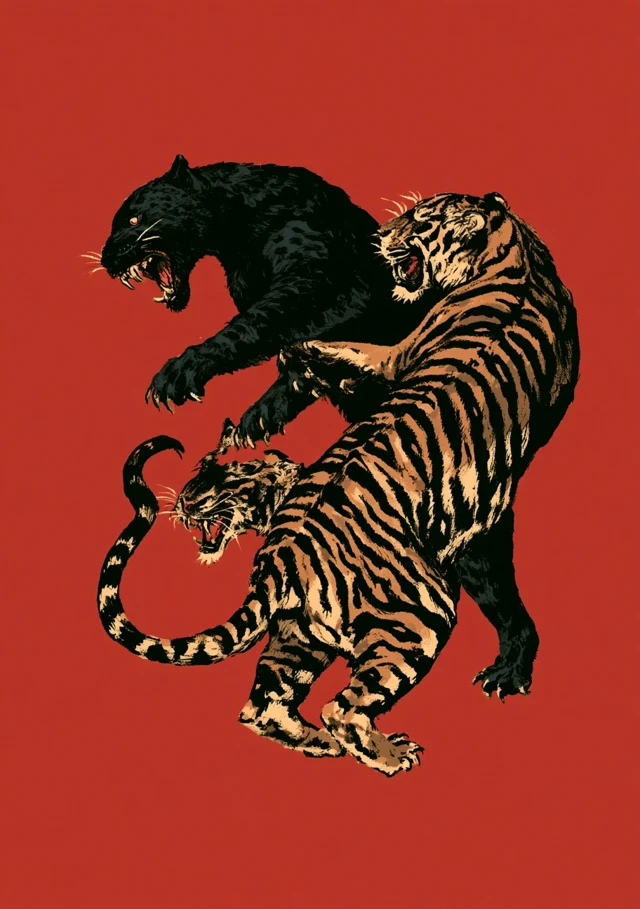
From a style you love to an idea of your own
Find a visual direction, keep the details that matter and develop a version of your own. The library brings prompts, style ideas and the image workspace together so a creative project can move forward naturally.

Discover a visual direction
A useful reference brings the subject, setting and mood into focus together. Notice the relationship that matters: a person within a room, a product beside a prop, or a headline against its background. This is often more useful than collecting extra style words.

Keep a useful creative starting point
Treat a prompt as an editable creative starting point. Keep the style and framing that suit the project, then change the subject, palette or context. When you need another direction, the existing AI assistant can help organise your idea into a fuller description.

Continue in the image workspace
Take your description or your own reference image into the image workspace, then choose a suitable model. Text-to-image, character references and remixing serve different starting materials. The same brief can also lead to several distinct visual approaches.
Ideogram 5.0 Prompts: Explore What an Image Can Be
Ideogram 5.0 prompts connect photography, illustration and design inspiration. Think about how the image should feel: natural, dramatic, gentle or bold. A style becomes more useful when it supports the purpose of the piece rather than acting as decoration alone.
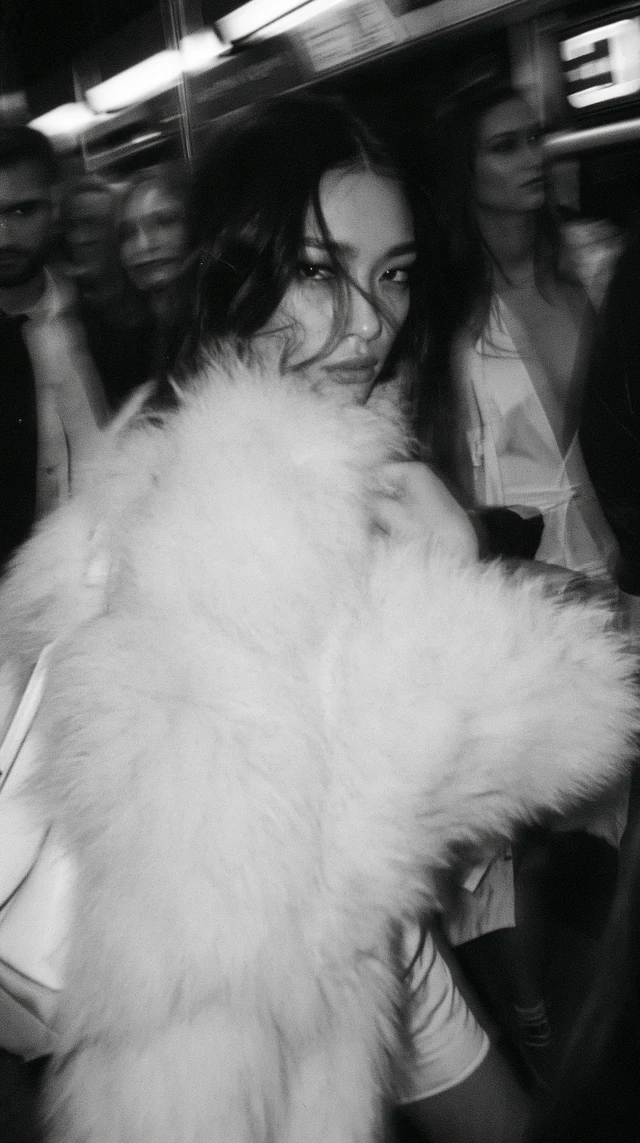
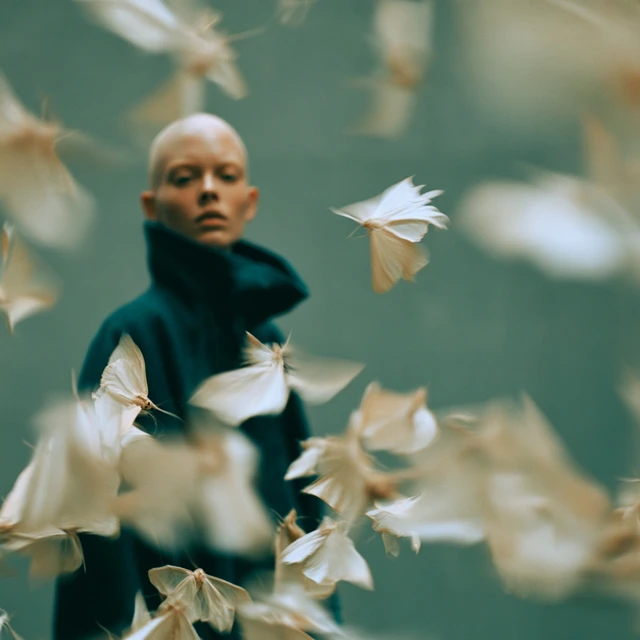
Cinematic portraits and light
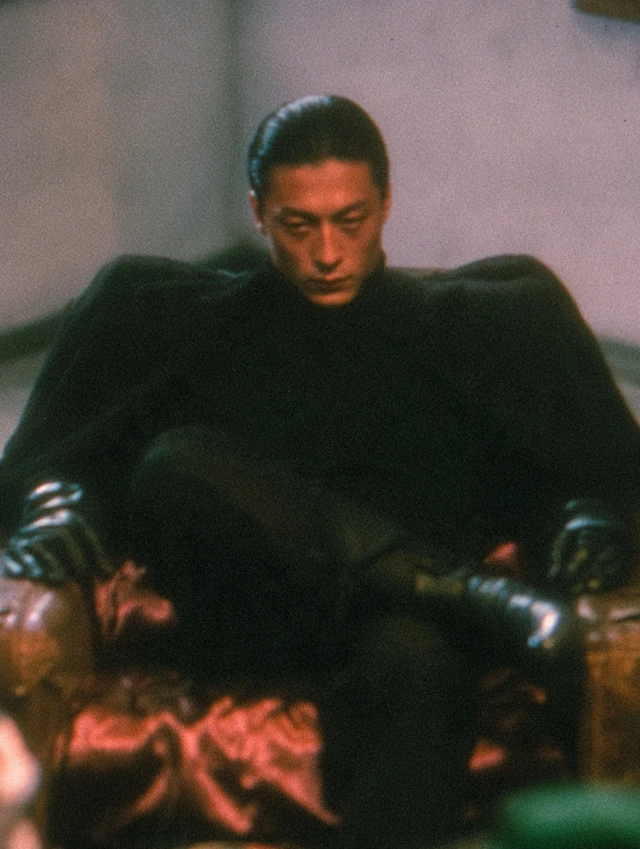
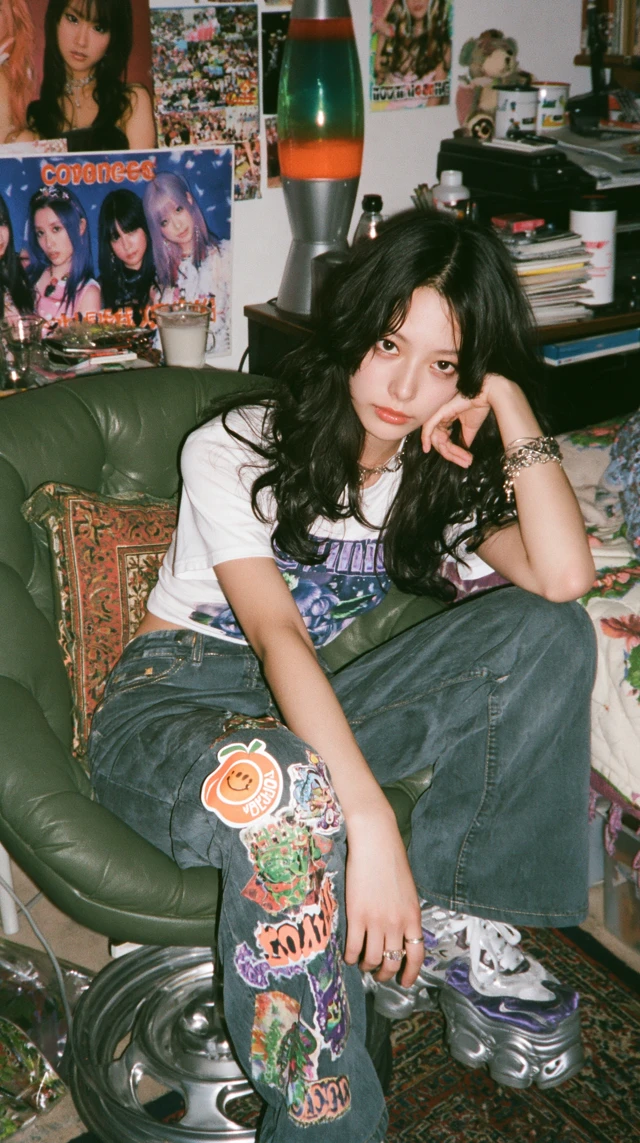
An expressive portrait depends on more than sharp detail. Window light, background distance, clothing texture and expression shape the feeling of the image. Explore this direction for editorial pictures, character stories and covers with a clear emotional tone.
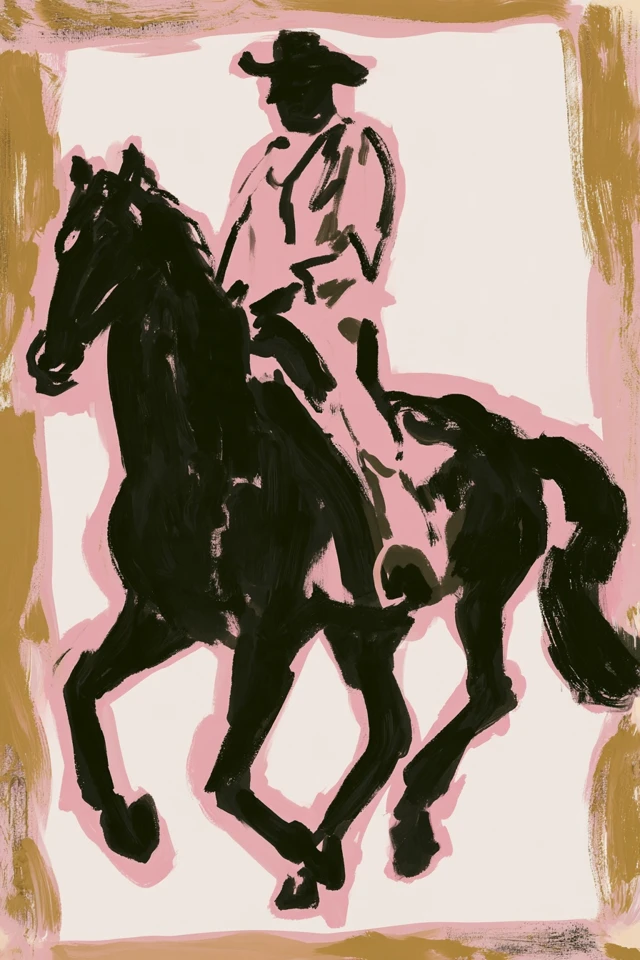
Illustration and artistic expression
Illustration gives a subject room to become playful, quiet or unexpected. Choose a consistent language of shapes and colours for a story, letting the characters, setting and decorative elements work together instead of competing for attention.
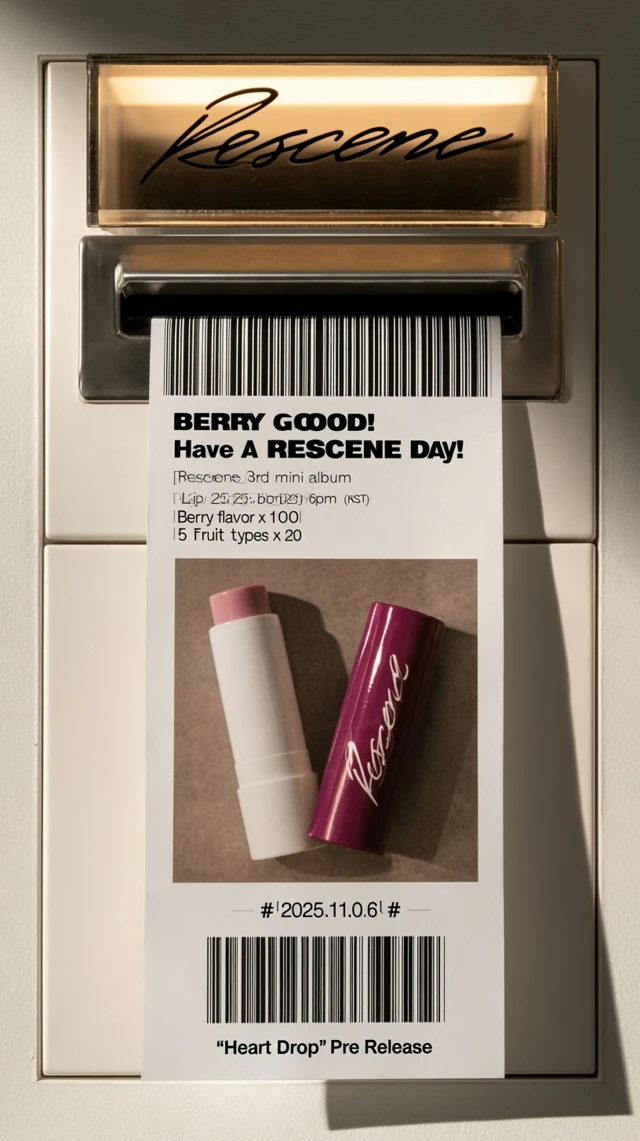
Typography and brand details
Words and pictures can share the spotlight. Receipts, packaging and campaign cards bring headlines, numbers and products into one visual system. Explore hierarchy, white space and material to make a brand concept both distinctive and clear.
Characters, places and imagined worlds
Look through Ideogram 5.0 prompts for character, landscape and fantasy ideas that fit the world of your project. Keep the atmosphere you like, then rearrange the subject and story clues to make the setting your own.
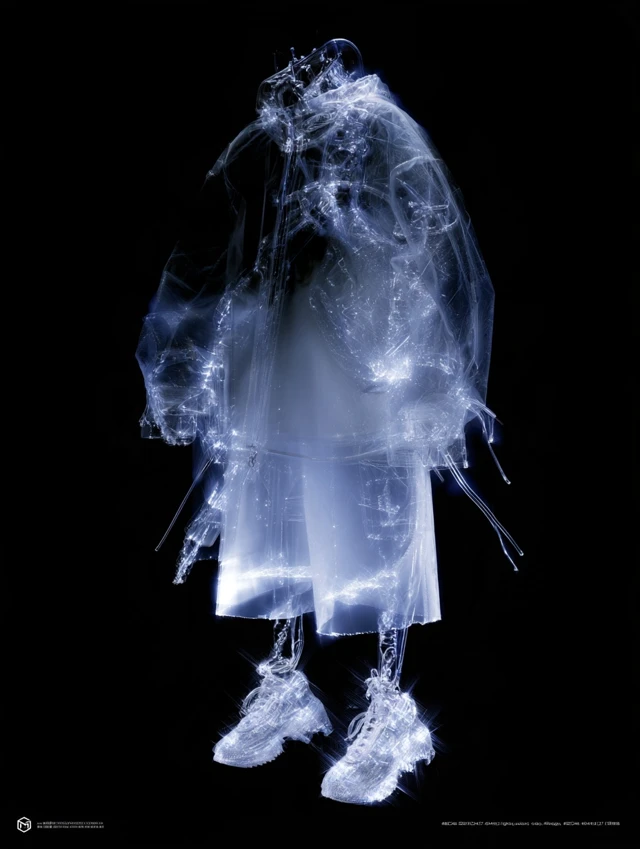
Character silhouettes and materials
Popular themes
A clear silhouette makes a character recognisable before the smallest details appear. Translucent fabric, a strong coat shape and matching footwear can establish a future-world costume. Develop characters through wardrobe, material and pose as well as faces.
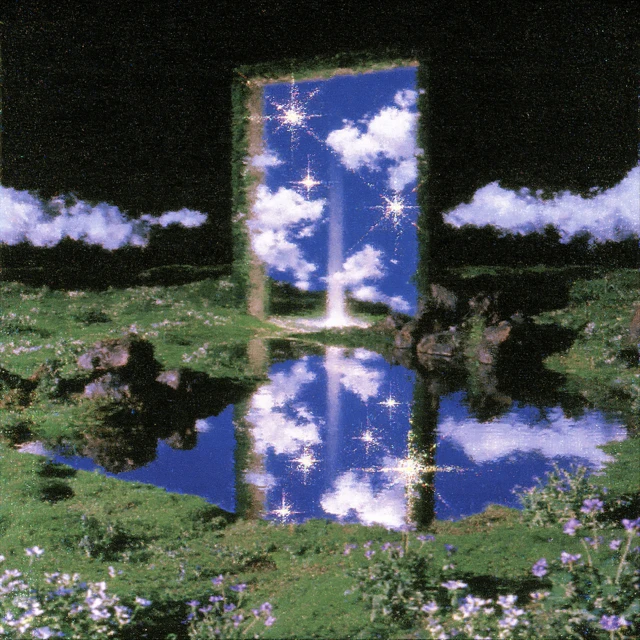
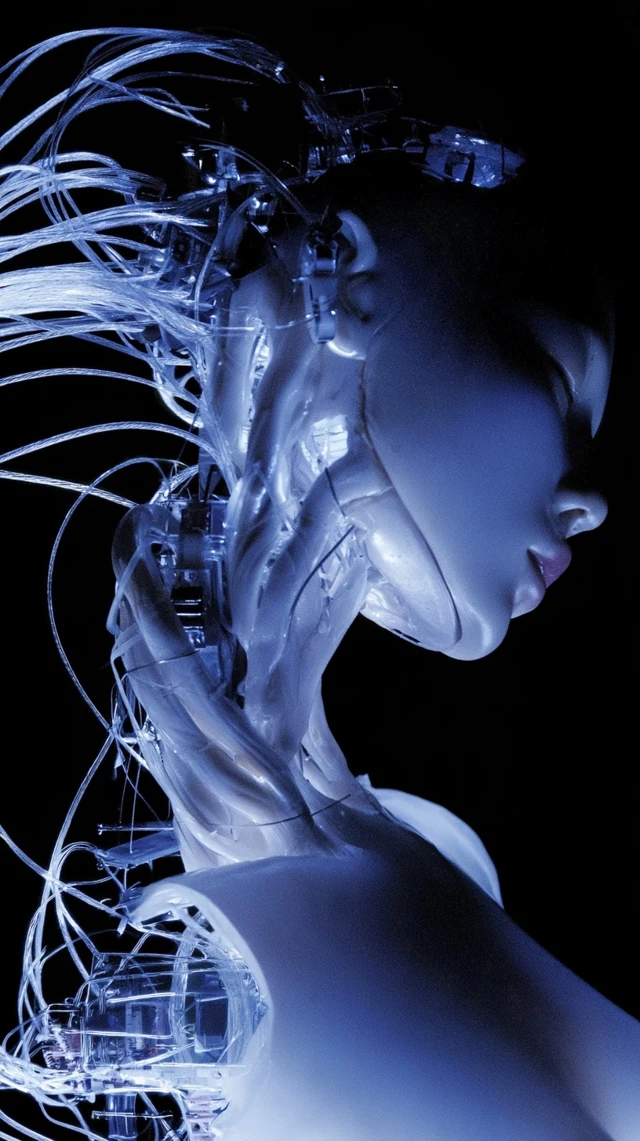
Inspiration for different creative projects
Visual inspiration becomes useful when it answers a project need. Ideogram 5.0 prompts can support brand imagery, product stories, character concepts and personal art. Each use asks for a different balance of information, atmosphere and space.
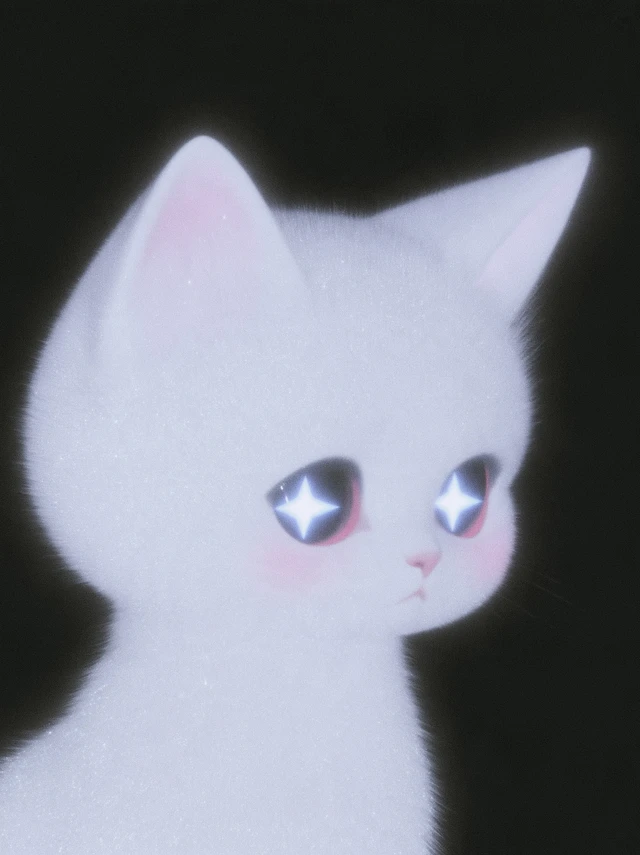
Game worlds and visual concepts
Build a shared visual language for characters, objects and environments, moving from a single concept toward a larger world. Carry a main palette, material vocabulary and period feeling across scenes so the next image belongs to the same story.
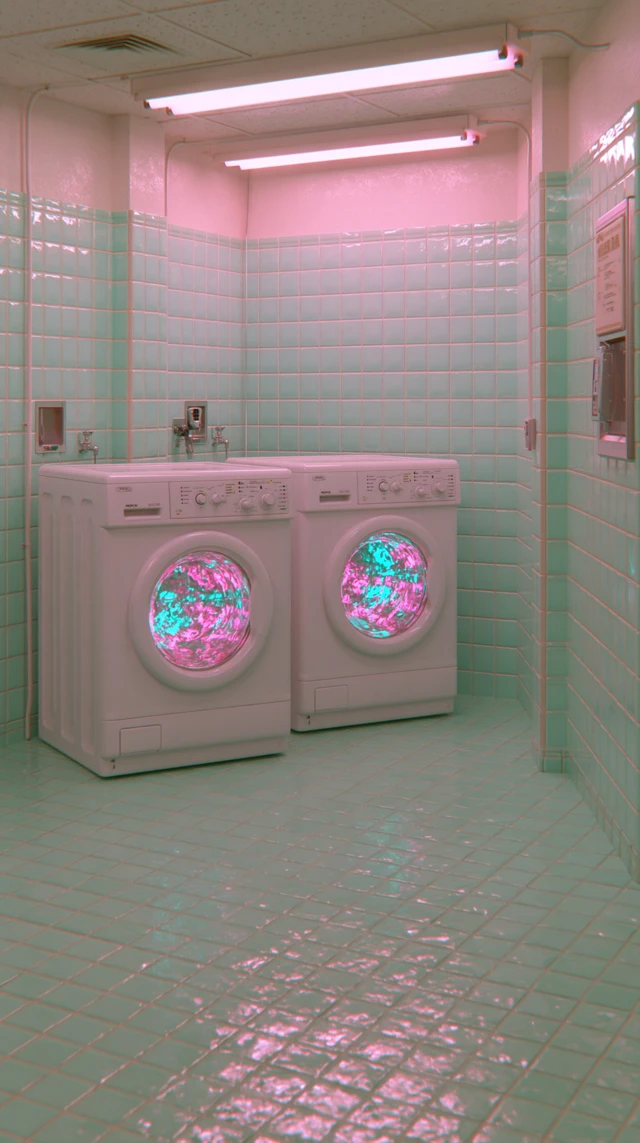
Brand content and social storytelling
Find a picture that makes an event, article or social topic easy to understand at a glance. Put the message first, use subject and colour to establish recognition, and leave room for the final headline and campaign text.
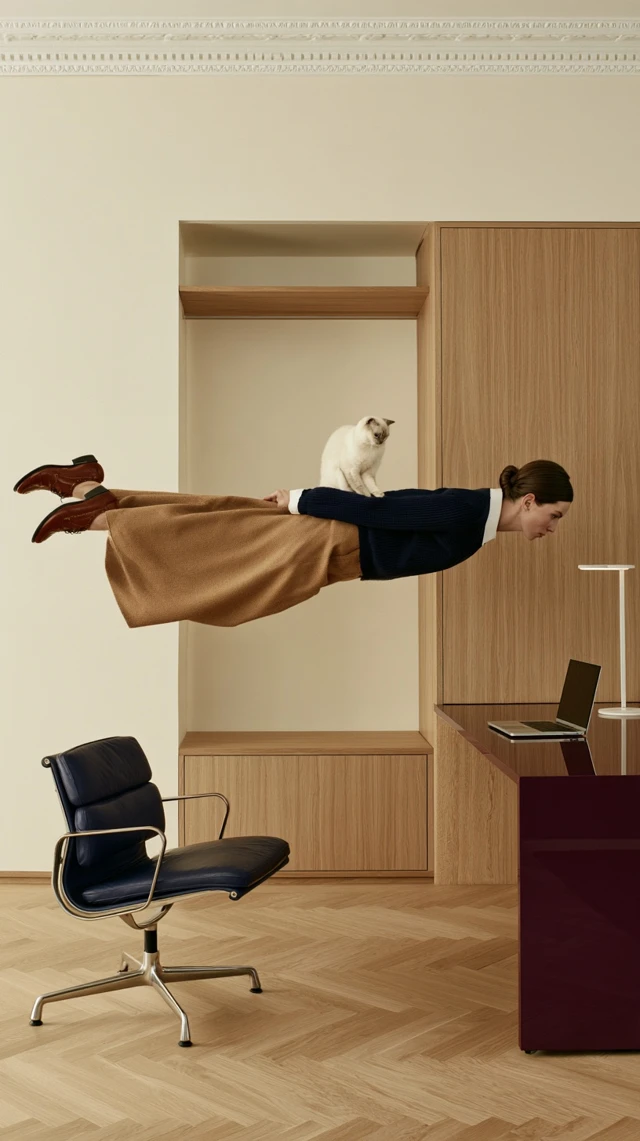
Spaces and commercial concepts
Commercial imagery can stretch the rules of an ordinary room. A home office, familiar furniture and an unexpected gesture can form a story for interiors, lifestyle or campaign content. Connect layout, material and light around a clear visual theme.
Publishing, illustration and personal work
A story, an article or a personal theme can become an illustration brief. Use viewpoint and colour to establish a reading rhythm, exploring related directions for a cover, chapter images or a collection of personal work.
Different directions for different creators
Portraits, brands and personal art call for different visual decisions. Explore how a creative starting point can serve a particular story, audience or medium.
Explore the relationship between light, expression and setting for a portrait story.

About Ideogram 5.0 Prompts
Learn what the resource includes, how text examples can be adapted, and which workflow to explore next. Ideogram 5.0 prompts are most useful when you keep the expressions that fit your project and leave the rest behind.
Explore starting points for lettering, portraits, product settings, illustration and imagined worlds. Choose a direction around the work you need to make, then adapt its subject, palette and environment.
The text examples are free to browse and copy. Image generation uses the model, settings and credit quote shown in the workspace. Copying a prompt does not submit a generation task.
A clear subject can be enough to begin. The AI assistant can help organise an idea; when you already know the direction, combine the subject, setting, style and image purpose in your own words.
Ideogram 5.0 · Ideogram V3 · Ideogram Character · Ideogram V3 Remix
The gallery retains the original prompt text for reference. Describe your own theme, headline and context when adapting it. Mark any exact words separately and check their final appearance in the image.
A prompt describes image content and style. Size, image count and speed are workspace settings, and the available options depend on the selected model. Unsupported parameters do not become available when added to the text.
Explore text-to-image for a new scene, Character for a clear portrait reference, and Remix for a different style or atmosphere based on an existing image. The model directory links to each workflow.
Let the Next Image Begin with a Good Idea
Save a direction you like from Ideogram 5.0 prompts, then add your own subject, reference and story. Continue to the image workspace, choose a workflow around your material and develop the next picture in your own way.